Still on Retailed classic? Classic guides
Use Retailed in Claude and ChatGPT
Connect Claude or ChatGPT to your Retailed account step by step, on the web, the desktop app or your phone, ask about your stock, sales and profit, and confirm any change in Retailed.
Connect Claude or ChatGPT to Retailed and ask about your business in plain words: "What did I make on Jordans this year?" or "Which items should I relist first?". The assistant reads your Retailed data as you, with your role's rights. It takes about a minute, and you only do it once.
What the assistant can do
- On Pro: read your stock, sales, payouts, expenses and reports.
- On Business and Shop: also prepare changes, such as recording a sale, adding stock or adding an expense. Each change waits in your Retailed Inbox as a draft. Nothing is saved until you apply it there, and you can undo it.
- Never: apply a change, delete anything, see costs your role can't see, see your password or sign-in codes, or touch your settings, team, API keys or billing.
The assistant works in every Retailed business you belong to. When you have more than one, it asks which one, or you can name it ("in Atelier Nord, …").
Copy Retailed's address
Both assistants connect with the same address: the address you open Retailed at, followed by /api/mcp, for example https://dashboard.retailed.io/api/mcp. Copy it from Retailed so it's always right.
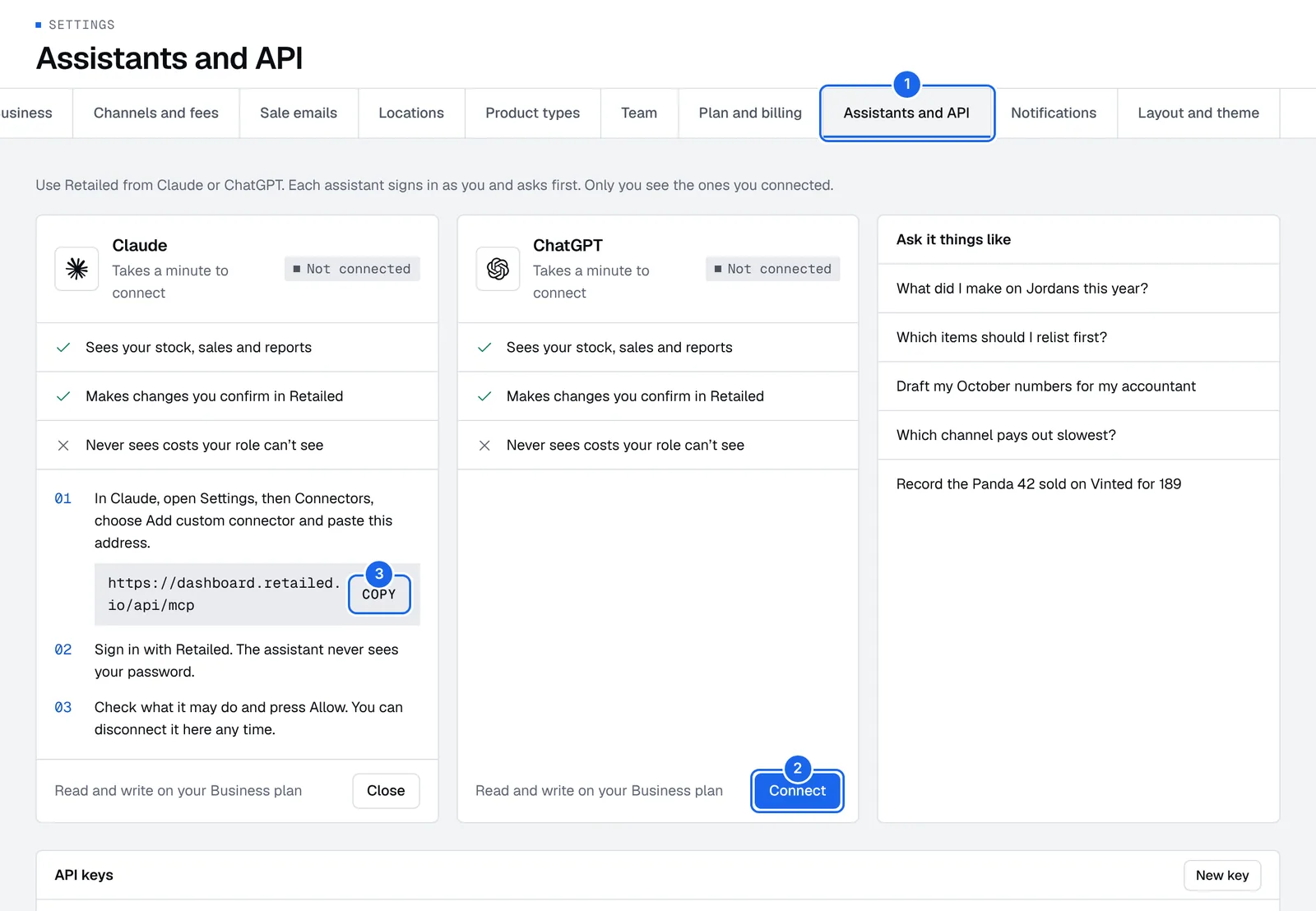
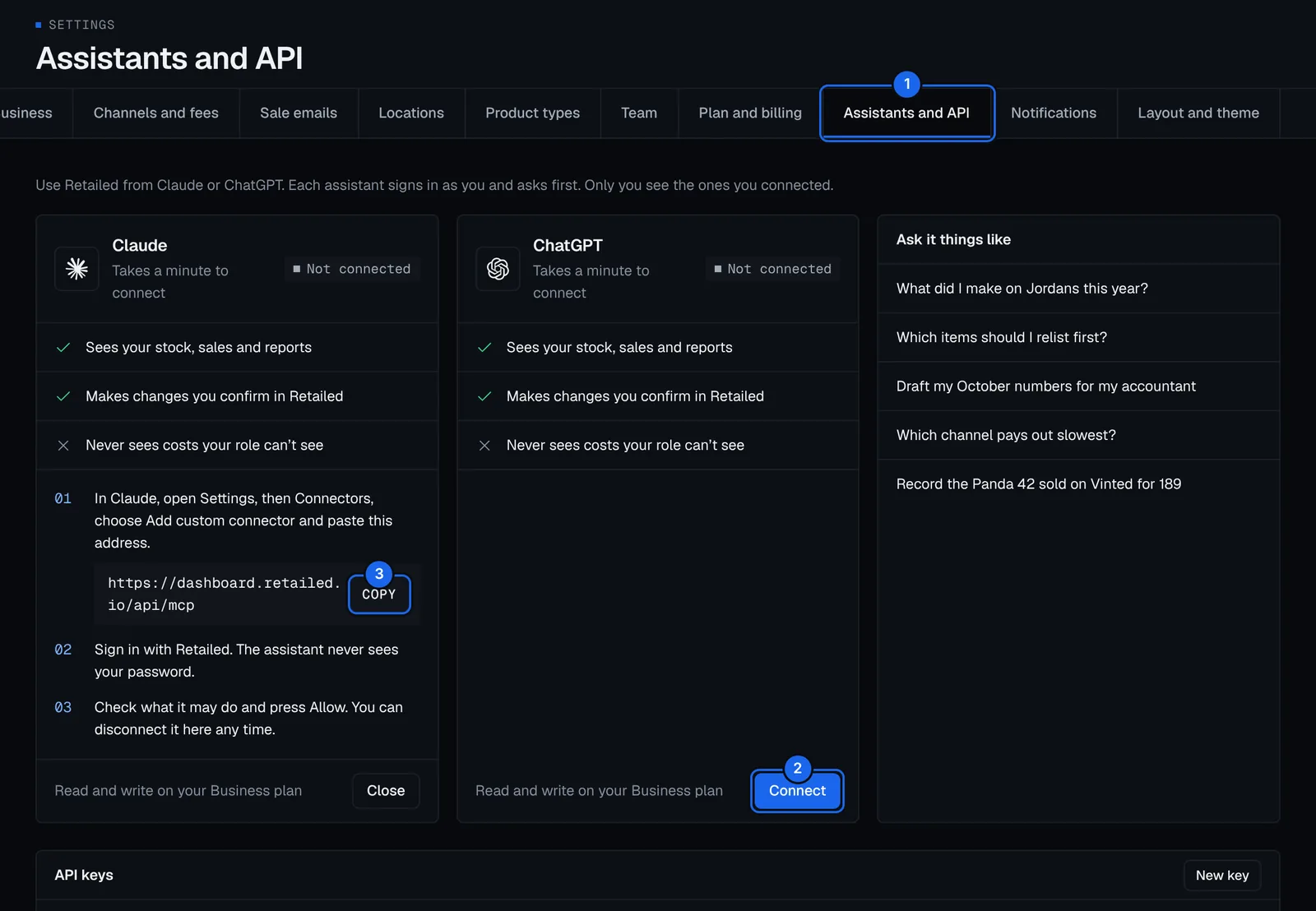
- In Retailed, open Settings › Assistants and API.
- Press Connect on the Claude or the ChatGPT card. The card opens on its three steps.
- Press Copy next to Retailed's address for assistants.
Connect Claude
Works on claude.ai and the Claude desktop app. Once it's added, Retailed also works in the Claude apps for iPhone and Android, with nothing more to set up.
- In Claude, open Settings (your name at the bottom left, then Settings) and go to Connectors.
- Press Add custom connector.
- Type the name
Retailed, paste Retailed's address in Remote MCP server URL and press Add. - Press Connect next to Retailed. Claude opens a Retailed page.
- Sign in to Retailed if you're asked, with your email code, Google or Apple.
- Retailed shows Let Claude use Retailed? and what it may and may never do. Press Allow.
- You're back in Claude, and Retailed shows as connected.
Use it in a chat: start a new chat, press the tools button under the message box (the sliders icon) and check that Retailed is turned on. Then ask your question. Claude asks your OK the first time it uses each Retailed tool: press Allow once or Always allow.
On Claude Team or Enterprise, an owner first adds Retailed once for the whole organisation in Admin settings › Connectors. Each person then presses Connect and signs in to Retailed with their own account.
Connect ChatGPT
ChatGPT adds Retailed as an app with its address. This needs a ChatGPT plan that allows custom apps and connectors.
- In ChatGPT on the web, open Settings (your name, then Settings) and go to Apps and connectors.
- If you don't see a button to add your own app, open Advanced settings and turn on Developer mode.
- Press Create (or Add app). Type the name
Retailed, paste Retailed's address as the MCP server URL, and pick OAuth for authentication. - Tick that you trust this app and press Create.
- ChatGPT opens a Retailed page. Sign in to Retailed if you're asked.
- Retailed shows Let ChatGPT use Retailed?. Press Allow.
- Back in ChatGPT, Retailed shows as connected.
Use it in a chat: press + next to the message box, then pick Retailed (under More or Developer mode, depending on your plan). Then ask your question.
Want the Retailed logo in ChatGPT? It doesn't load it by itself: in the app's settings, upload a small square PNG of the logo.
The Allow page
When an assistant connects, Retailed shows a page with what it may do:
- Sees your stock, sales and reports.
- Makes changes you confirm in Retailed (Business and Shop).
- Never applies a change, deletes anything or touches settings, team or billing.
- Never sees your password or sign-in codes.
- Never sees costs your role can't see.
Press Allow to connect, or Deny to stop. "This link doesn't work" means the link expired or was used: start connecting again from the assistant.
Things to ask
- "What did I make on Jordans this year?"
- "Which items should I relist first?"
- "Draft my October numbers for my accountant."
- "Which channel pays out slowest?"
- "How many Panda Dunks do I have in size 42, and where are they?"
- "Record the Panda 42 sold on Vinted for 189."
The assistant answers from your live Retailed data. Name a period, a channel or a location for a sharper answer.
Confirm a change
When you ask the assistant to record something, it prepares a draft and tells you so. Nothing changes in your books yet.
- Open the Inbox in Retailed. Drafts from assistants show with the source Ask Retailed.
- Check it: the item, the price, the channel and the fees.
- Press Apply to save it, or Discard to drop it.
Changed your mind after applying? Open it under Applied in the Inbox and press Undo.
See and disconnect assistants
Settings › Assistants and API shows Connected on each assistant you connected, with the date. Assistants other than Claude and ChatGPT show under Other assistants.
- Press Disconnect on the assistant.
- Press Disconnect again to confirm.
It loses access at once. Connecting it again asks you on the Allow page. You can also remove Retailed from the assistant's own settings, but disconnecting in Retailed is what cuts its access.
Only you see the assistants you connected. Each person in your team connects their own.
If something doesn't work
- "Needs the Pro plan or higher": assistants come with Pro and up. See Plans and billing.
- The assistant can read but not prepare changes: changes need the Business plan or higher.
- The assistant says it can't see costs: your role doesn't include costs. Ask the owner.
- "Couldn't connect" or a sign-in loop: check the address ends with
/api/mcp, then remove Retailed from the assistant and add it again. - The assistant stopped answering about Retailed: it may have been disconnected, or turned off in the chat. Turn it on in the chat's tools, or connect it again.
- No connector option in your assistant: your assistant plan may not allow custom connectors. Use Ask Retailed inside Retailed instead.