Account and tax settings
Set your currency, size system, VAT or sales tax mode and fiscal year in Retailed, and delete data when you need to.
Your settings decide how every price, profit and tax figure is calculated, so check them before you add a lot of data. Open them with the gear icon in the header.
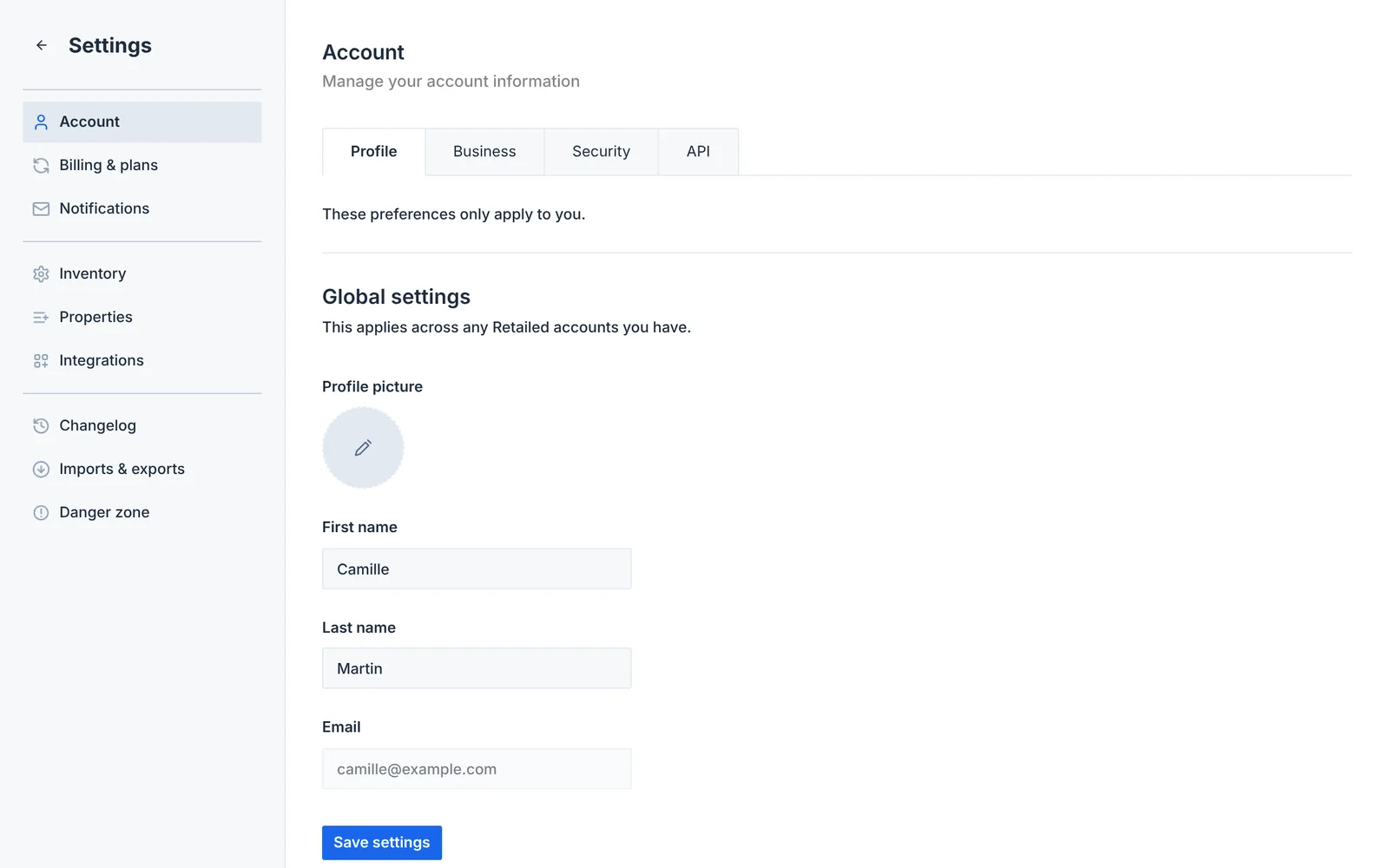
Account
Your name, profile picture, email and password, in Settings › Account.
Business
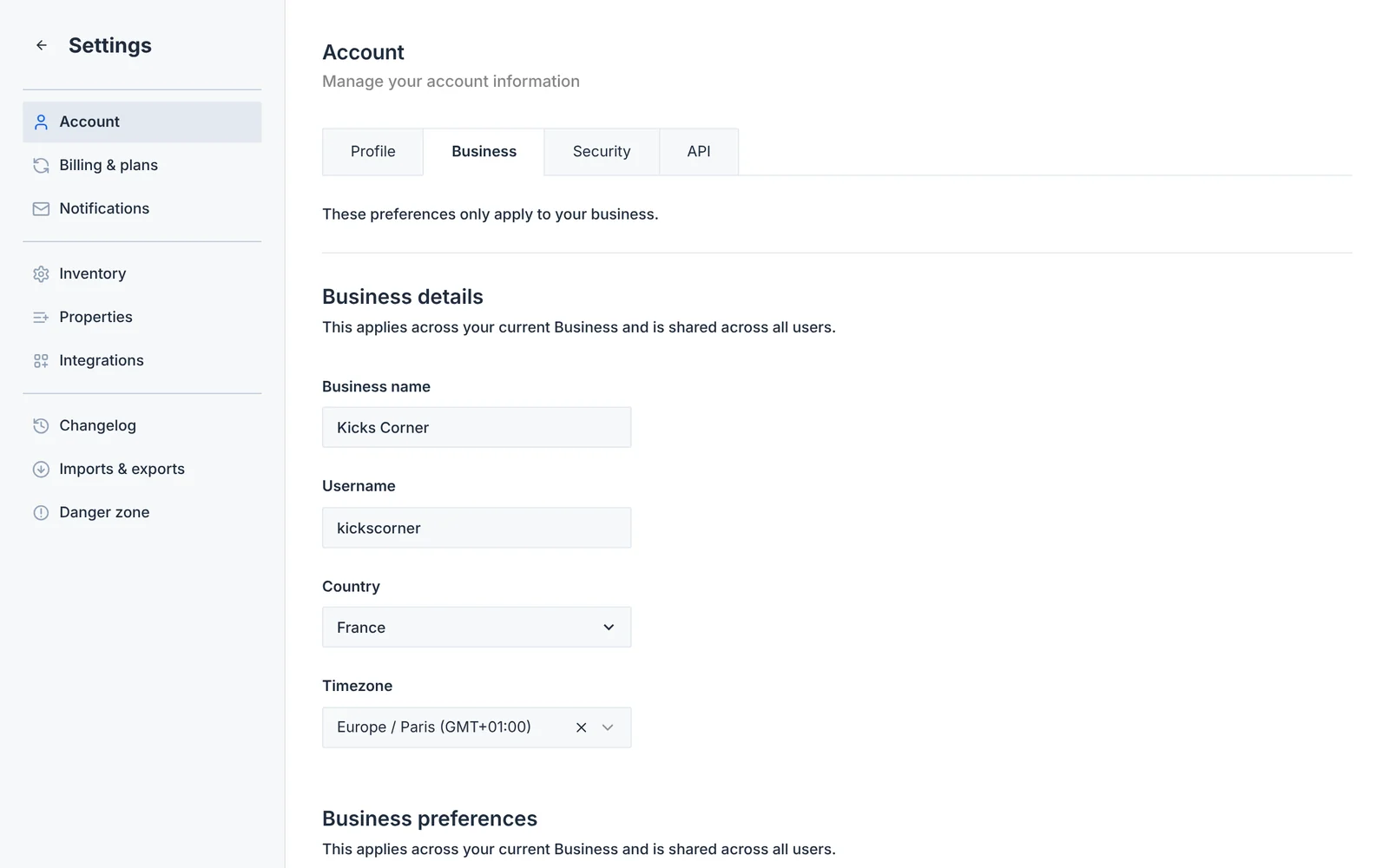
- Business name and username (the username is the address of your public inventory)
- Country and time zone
- Size system: US, UK, EU, CM or KR (KG and LB are for items sold by weight)
- Currency: one of 26 currencies, used as your default on every form
- Fiscal year starts in: the month your tax year starts, used by fiscal-year exports
- Reselling preferences: what you sell
Tax
Choose VAT or Sales tax, then set two switches:
| Switch | Turn it on if |
|---|---|
| Purchase tax recovered | You can reclaim the tax you pay when you buy stock (common for VAT-registered businesses). Your item costs then exclude that tax. |
| Include tax in revenue | The tax your buyers pay counts as your revenue. If it's off, Retailed shows revenue without tax and tracks the tax you owe separately. |
Each purchase, sale, listing, expense and subscription has its own tax field. The first time you type a new rate, Retailed offers to save it as your default (on that browser) so the next forms are already filled in. You can also override the tax switches on a single record.
The dashboard's tax reports and the export summary use these settings to show the tax you owe and the tax you can deduct.
Danger zone
Settings › Danger zone lets you permanently delete one type of data (all inventory, sales, listings, packages, subscriptions, expenses, contacts or companies) or your whole account. This can't be undone, so export your data first.