Guide forAnalytics dashboard →
Import and export
Import inventory, sales and expenses from CSV files, and export your data to CSV, Excel or JSON for your accountant.
Import a CSV file
You can import inventory, sales and expenses. Click Import on the Inventory, Sales or Expenses page:
- Open the template spreadsheet linked in the import window, copy it and fill it in.
- Download it as CSV and drop the file in the import window. Retailed checks each row and tells you what to fix.
- The import runs in the background. You can leave the page.
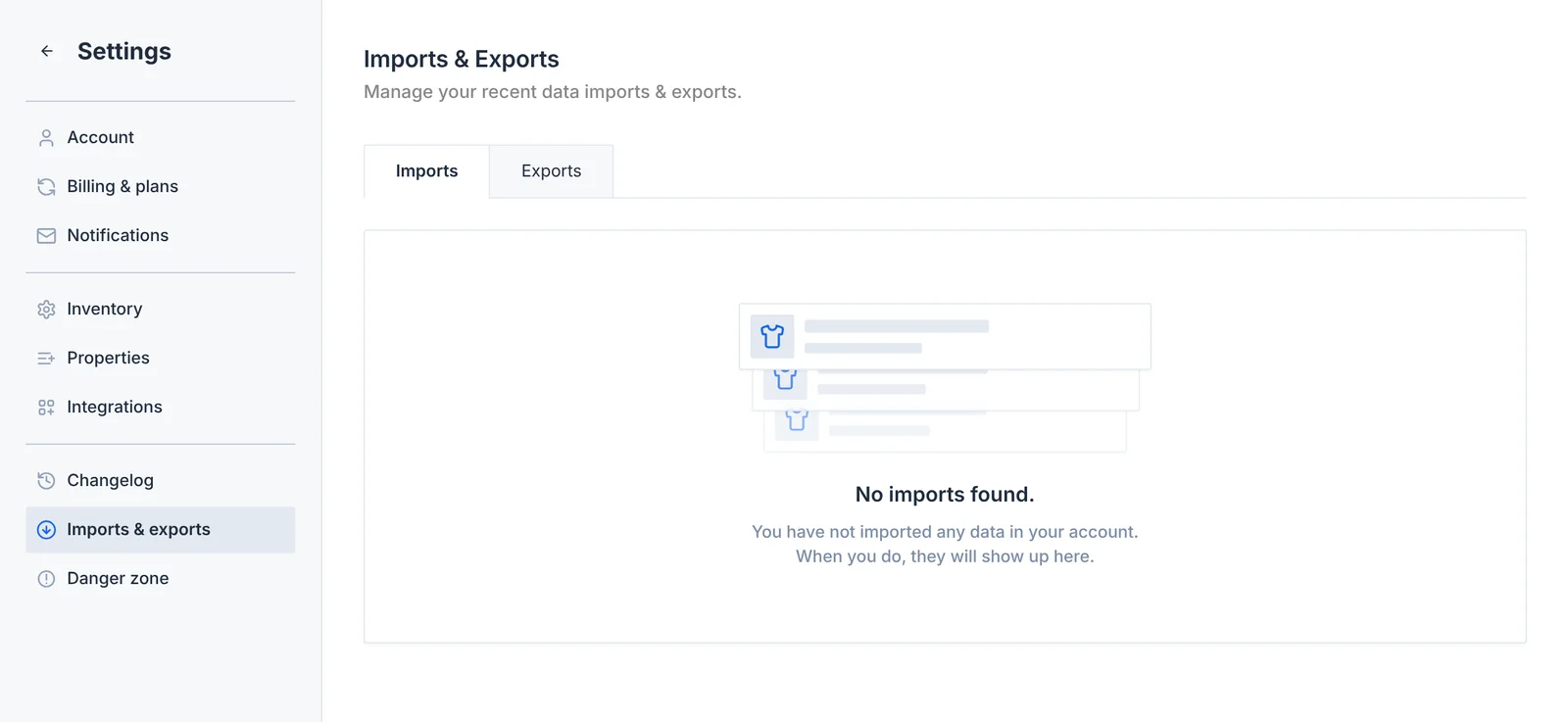
Settings › Imports & exports lists every import with its status and any rows that failed.
Export your data
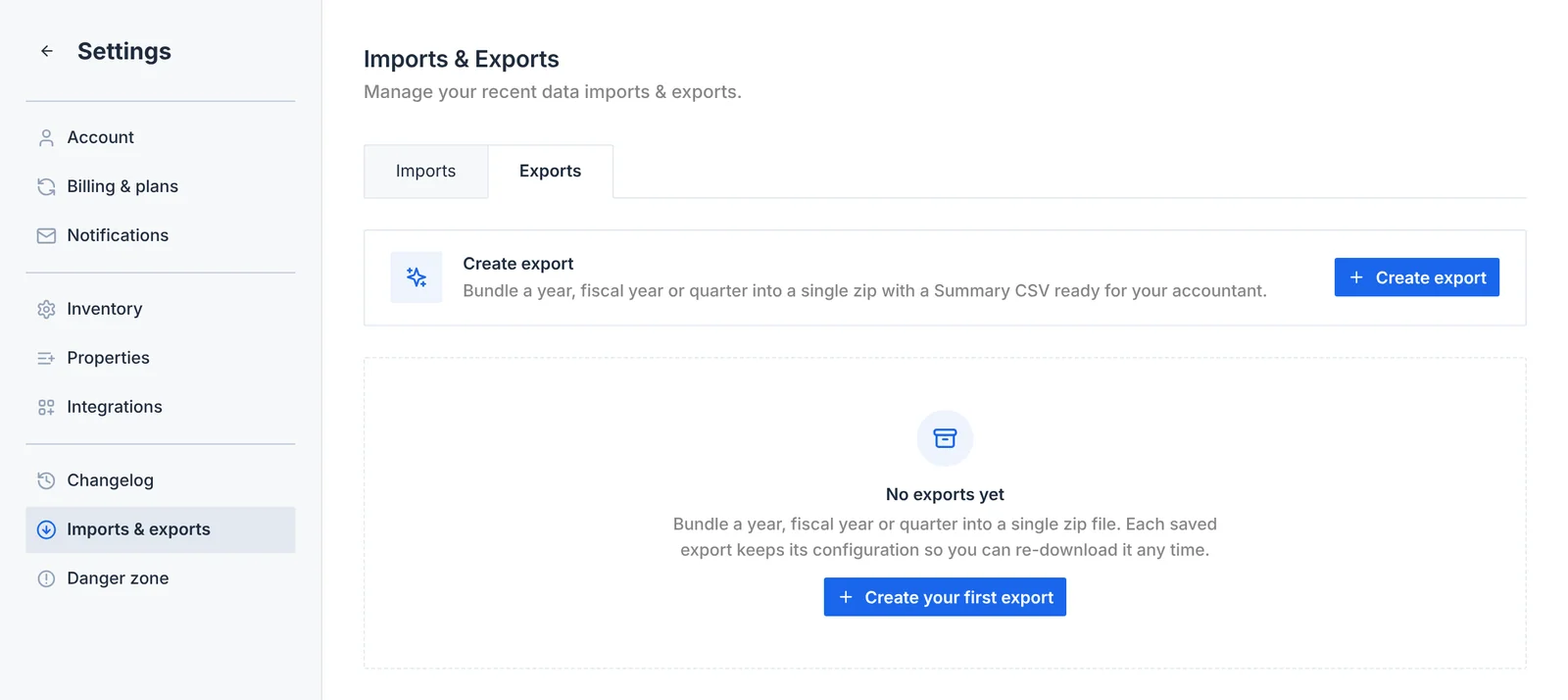
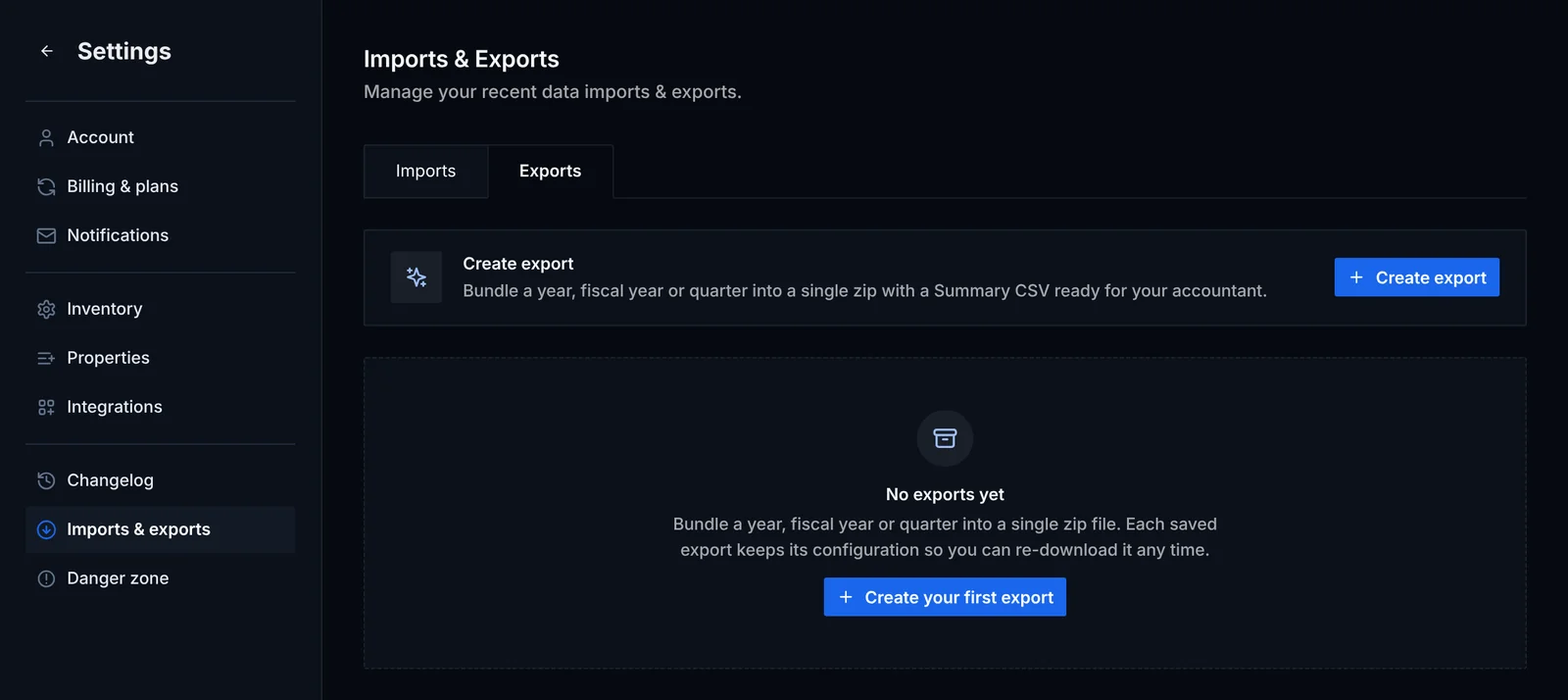
Go to Settings › Imports & exports › Exports and click Create new export.
- Tables: inventory, sales, listings, packages, expenses, subscriptions, contacts and companies. Choose the columns for each.
- Period: all time, a fiscal year, a quarter or custom dates. Your fiscal year follows the start month you set in account settings.
- Format: CSV, Excel (.xlsx) or JSON.
The export comes with a summary your accountant can read: revenue, cost of goods sold, profit, and the tax you owe and can deduct, per currency. Past exports stay in the list so you can download them again.
Quick export
The download button above any table exports what you see, with your current filters, or only the rows you selected.
Exports are part of paid plans.