Guide forInventory and sales management →
Sales
Record sales in Retailed with fees, shipping and tax, see profit after fees, and create many sales at once.
A sale is always linked to a unit from your inventory, so Retailed knows what the item cost and can work out your profit.
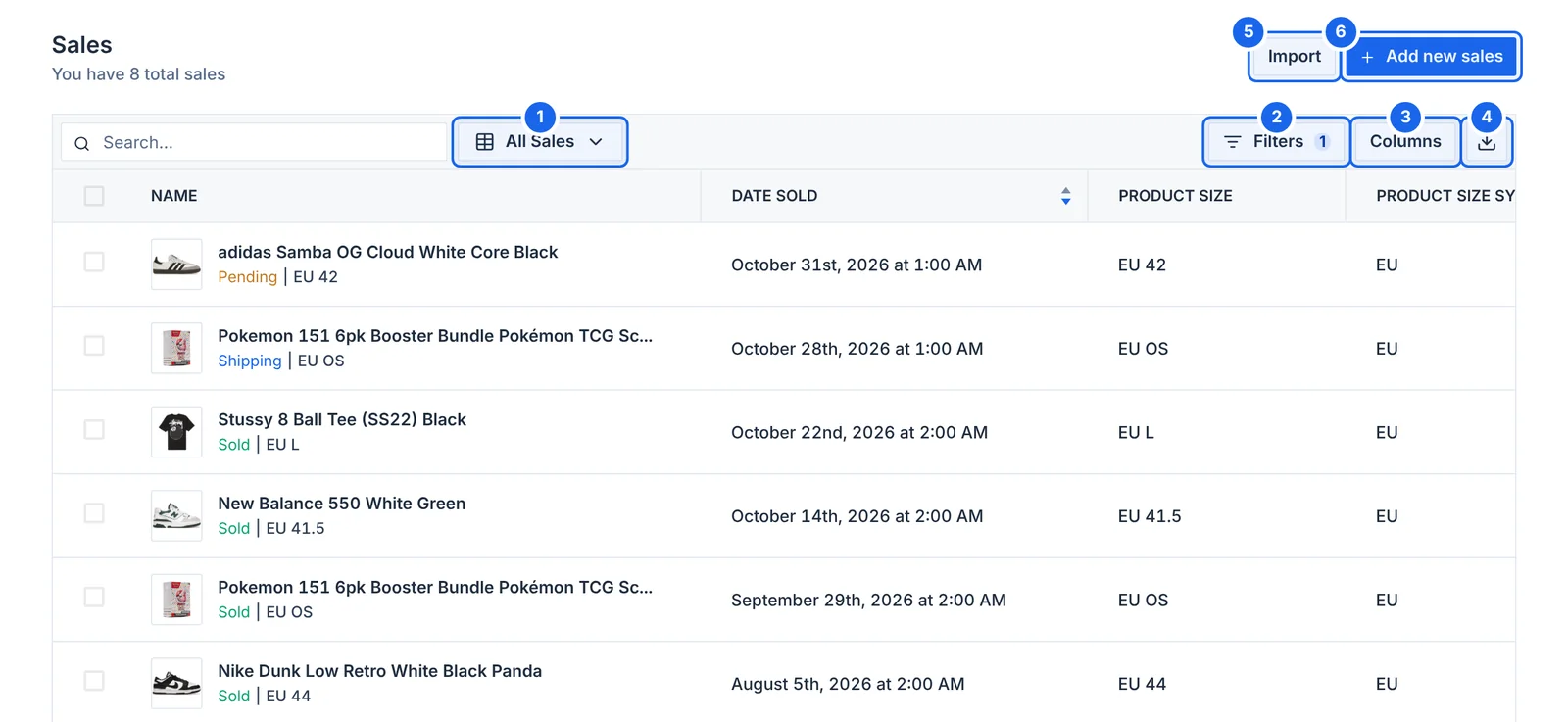
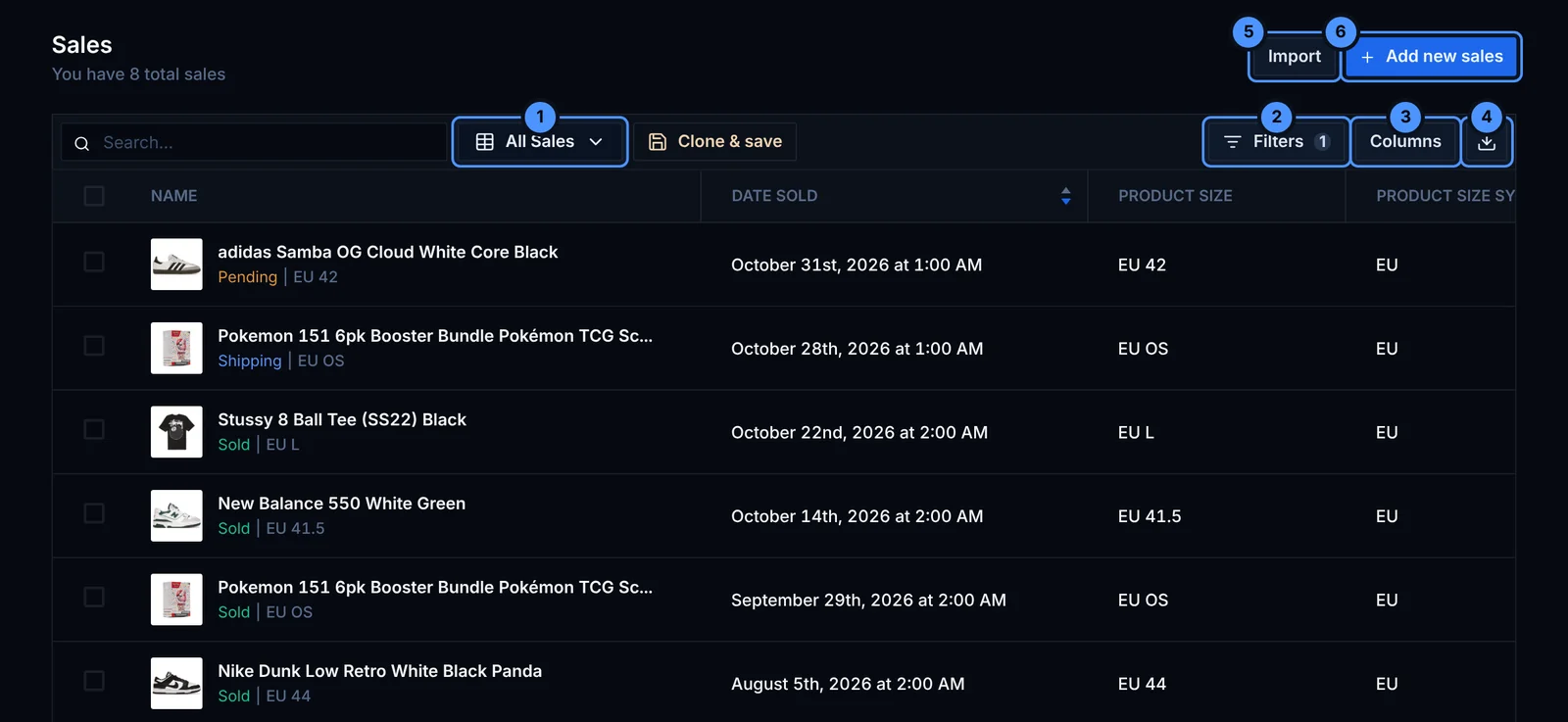
- Views: all sales, or a view you saved.
- Filters: by status, platform, date and more.
- Columns: show fees, shipping, profit and other fields.
- Export what you see to a file.
- Import past sales from a CSV file.
- Add new sales by hand.
Record a sale
Open an item and click Sale, or click Add new sales on the Sales page. Fill in:
- Sale price and sale date
- Platform fees and shipping
- Tax, with your default rate already filled in
- Customer: the platform you sold on (a company such as StockX, Vinted or eBay) or a buyer from your contacts
- Status: Completed, Pending or Needs shipping
- Sale ID, tags, and the linked listing and package if you have them
Retailed already knows 27 common platforms and shops. To add your own, type its website and Retailed finds its name and logo.
The item moves to Sold. Sales that are pending or need shipping also appear in the To Do panel on the dashboard.
Create many sales at once
On the Inventory page, select the items you sold and click Create sales in the bar at the bottom. In three steps you:
- choose the customer or platform,
- set the prices with a pricing template (Quick Sale, Retail Price, Premium) or set each price yourself, then
- review and create every sale in one go.
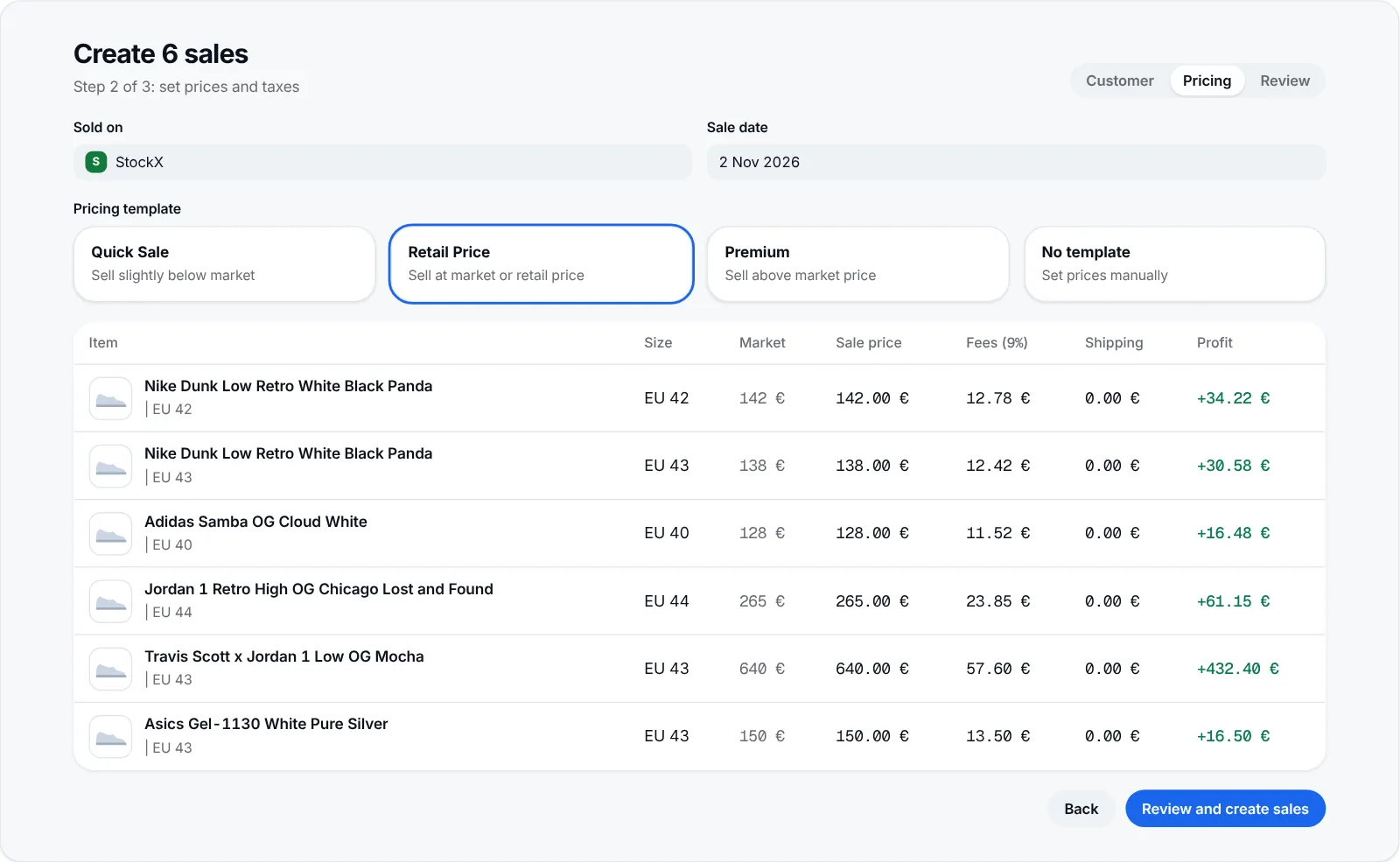
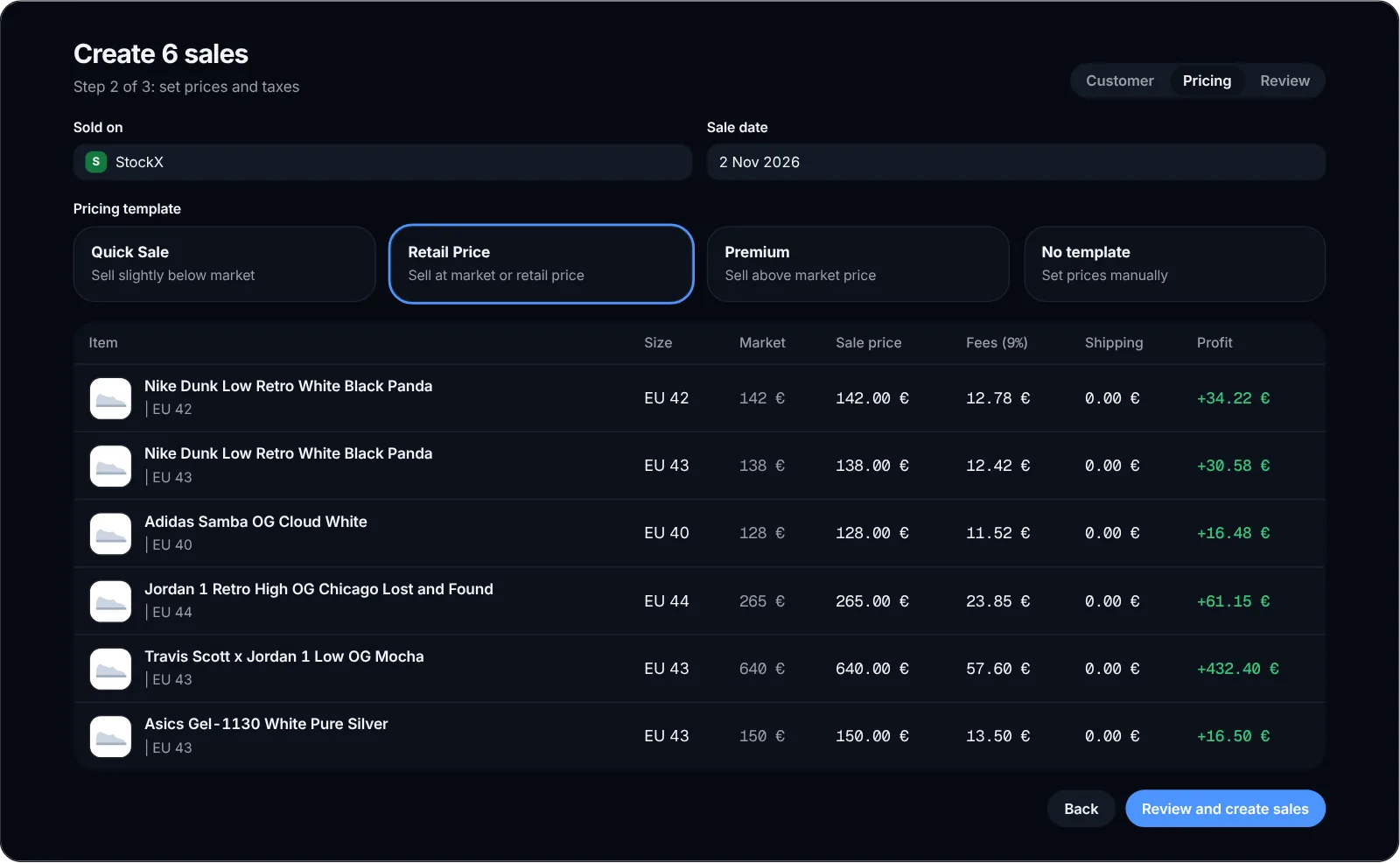
Creating sales in bulk is part of the Professional and Warehouse plans.
Totals for a selection
Tick sales on the Sales page to see their revenue, cost of goods sold, gross profit, net profit and margin.
Fix a mistake
Open the sale to edit any field. To undo a sale entirely, revert it: the sale is removed and the item goes back to your stock.
Import past sales
You can import your sales history from a CSV file. See Import and export.