Guide forInventory and sales management →
Add items
Add stock to Retailed from the catalogue, by hand, with a size run or from a receipt photo.
Click Add new items on the Inventory page, or use the + button in the header. A panel opens with three ways to start.
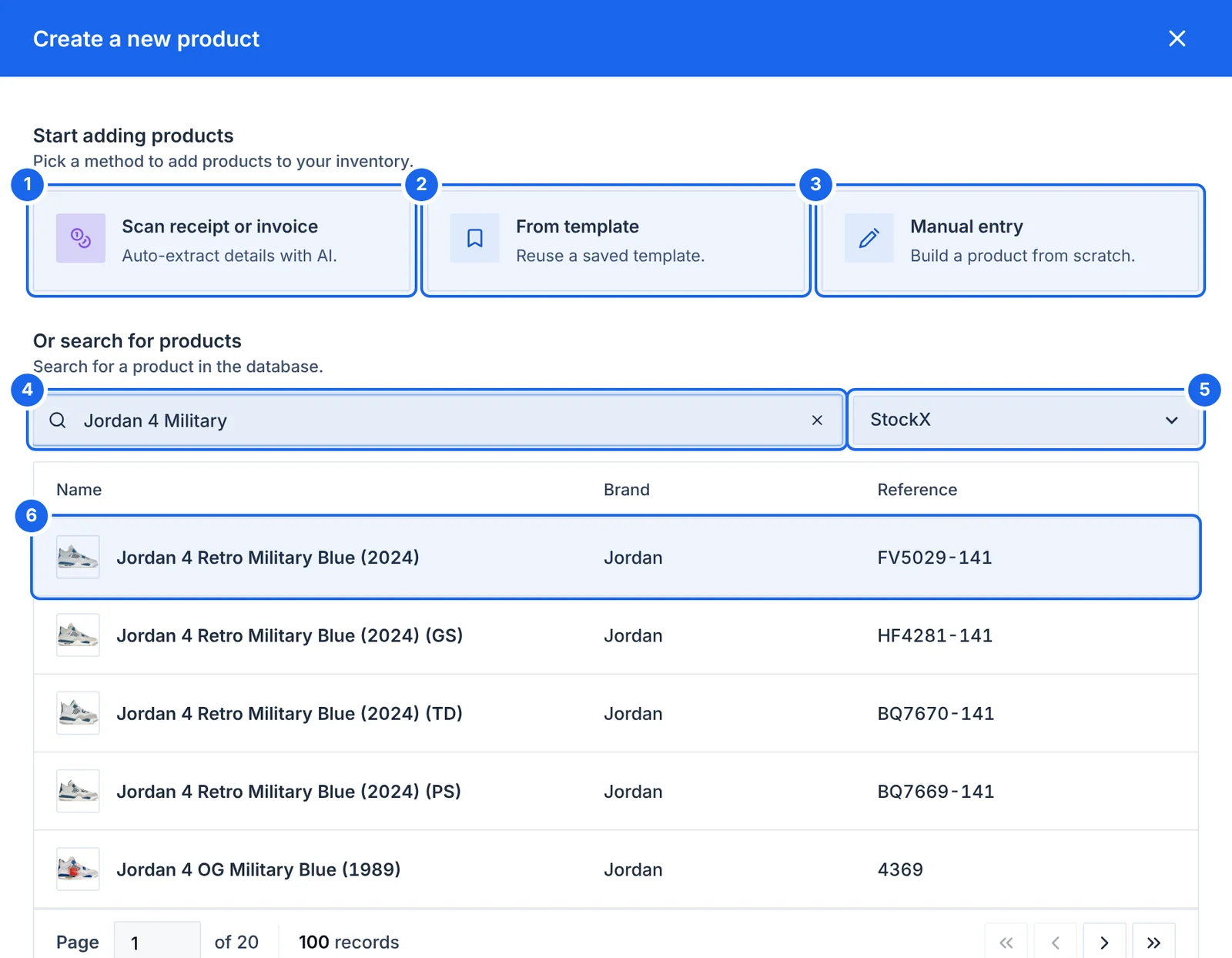
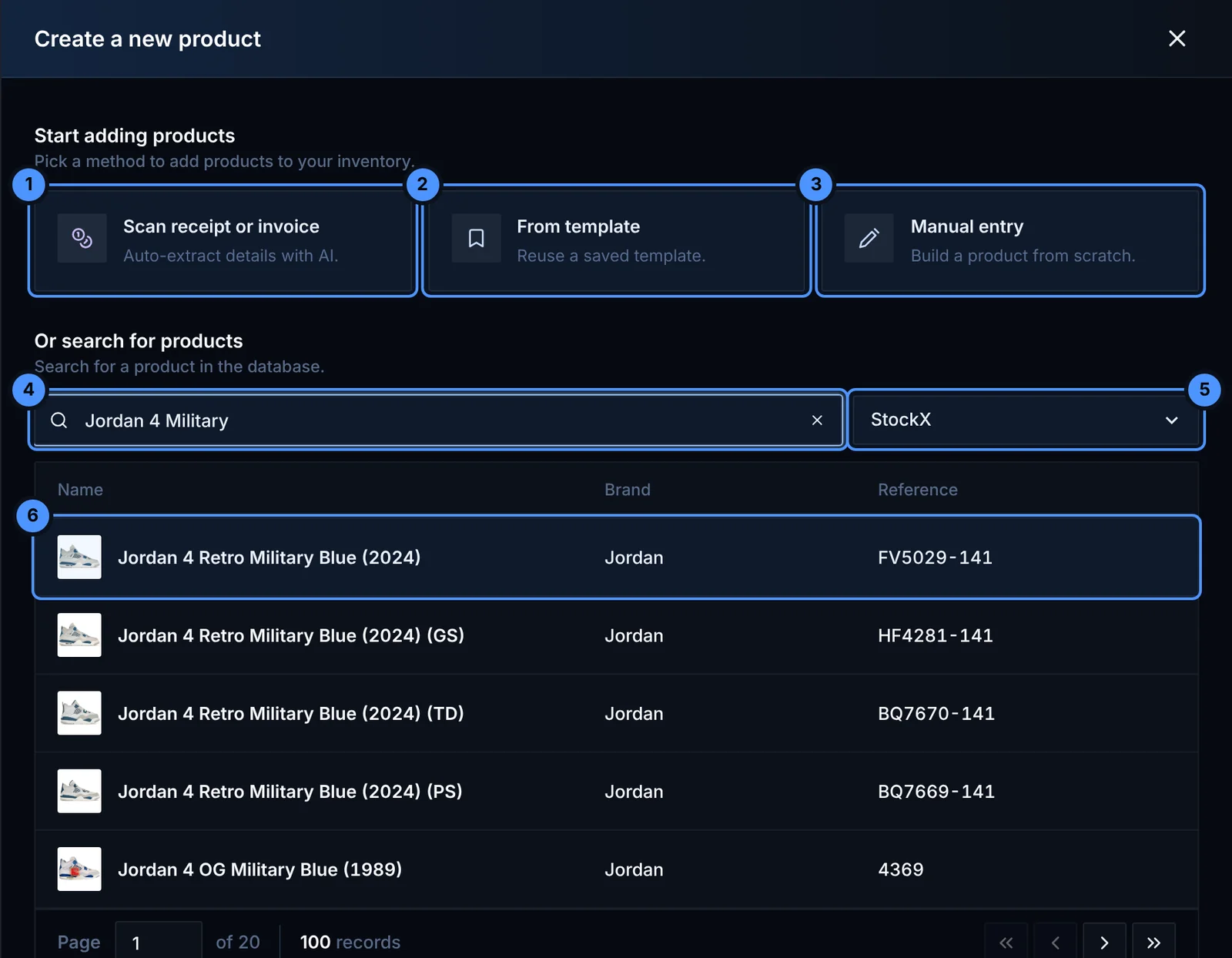
- Scan receipt or invoice: upload a photo or PDF and Retailed fills in the items (uses Smart Credits).
- From template: start from a product you saved as a template.
- Manual entry: type everything yourself.
- Search the catalogue by name or SKU.
- Pick the catalogue to search, such as StockX.
- Click a result. Retailed fills in the name, reference, brand and photo for you.
From the catalogue
Type a name or a reference (for example DD1391-100) in the search box. Pick the match and Retailed fills in the title, reference, colourway, brand, category and photo.
By hand
Choose Manual entry and type the product details yourself. Use it for anything that isn't in the catalogue.
From a receipt
Choose Scan receipt and upload a photo or PDF of the receipt or invoice. Retailed reads the items, prices and date and fills in the form for you to check. Each scan uses Smart Credits.
Sizes, quantities and purchase details
One product can have many units. Add one line per size and set:
- Size and quantity: a quantity of 3 creates three units
- Purchase price, shipping and tax: the tax uses your default rate, and you can override it
- Place of purchase, date and order ID
- Tags and an internal SKU if you use your own labels
Size run adds a full run of sizes in one go. This is handy after a restock or a wholesale order.
Tax on purchases
If you recover VAT or sales tax on purchases, Retailed counts your cost without the tax. You can change this for a single item with the tax switch on the form. See Account and tax settings.
Large stock
To add dozens or hundreds of items, import a CSV file instead. See Import and export.