Getting started
Create your account, set your currency and tax mode, and add your first items in Retailed.
Create your account
Sign up at dashboard.retailed.io. The free plan needs no card.
Answer the three setup questions
- Account: your name, business name and a username. The username is also the address of your public inventory.
- Business: country, size system (US, UK, EU, CM or KR for sizes; KG or LB for items sold by weight), main currency and tax mode (VAT or sales tax). Two switches tell Retailed whether you recover tax on purchases and whether tax counts as revenue. See Account and tax settings.
- Preferences: your time zone and what you resell.
Add your stock
Add items one at a time from the catalogue, by hand or from a receipt photo, or import a spreadsheet. See Add items and Import and export.
Log each sale
Record the sale price, the platform's fees and where it sold. Retailed shows your profit after fees. See Sales.
Add your costs
Add expenses and recurring subscriptions so your net profit is your real profit. See Expenses and subscriptions.
Find your way around
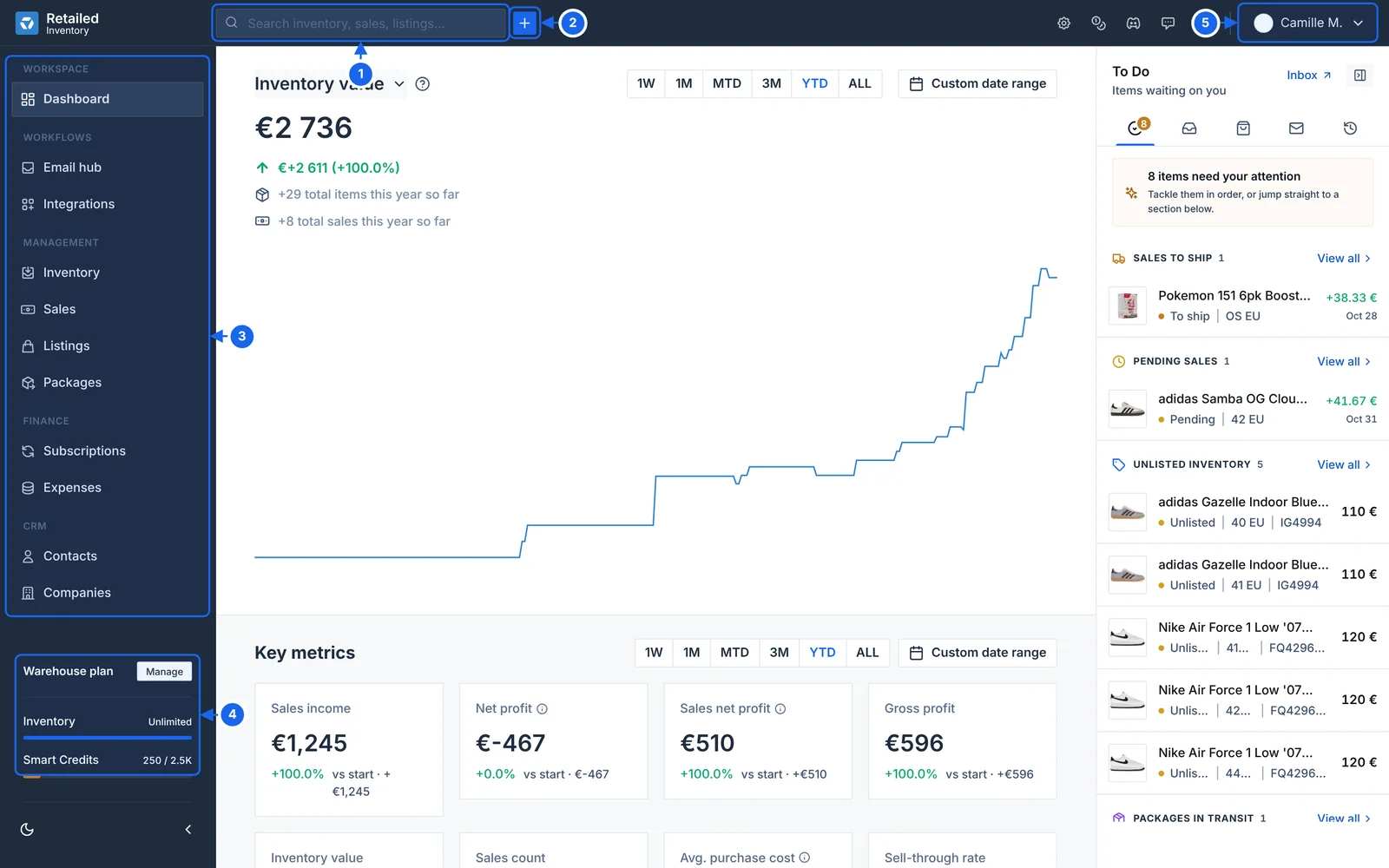
- Search finds items, sales and listings from anywhere.
- The + button creates any record.
- The sidebar, grouped by area.
- Your plan, with the inventory and Smart Credits you've used this month.
- Your account menu.
The sidebar groups the app into Workspace (Dashboard), Workflows (Email hub, Integrations), Management (Inventory, Sales, Listings, Packages), Finance (Subscriptions, Expenses) and CRM (Contacts, Companies). You can collapse it for more room.
In the header:
- Search finds items, sales and listings from anywhere.
- The + button creates any record.
- The icons on the right open settings and the ways to reach support.
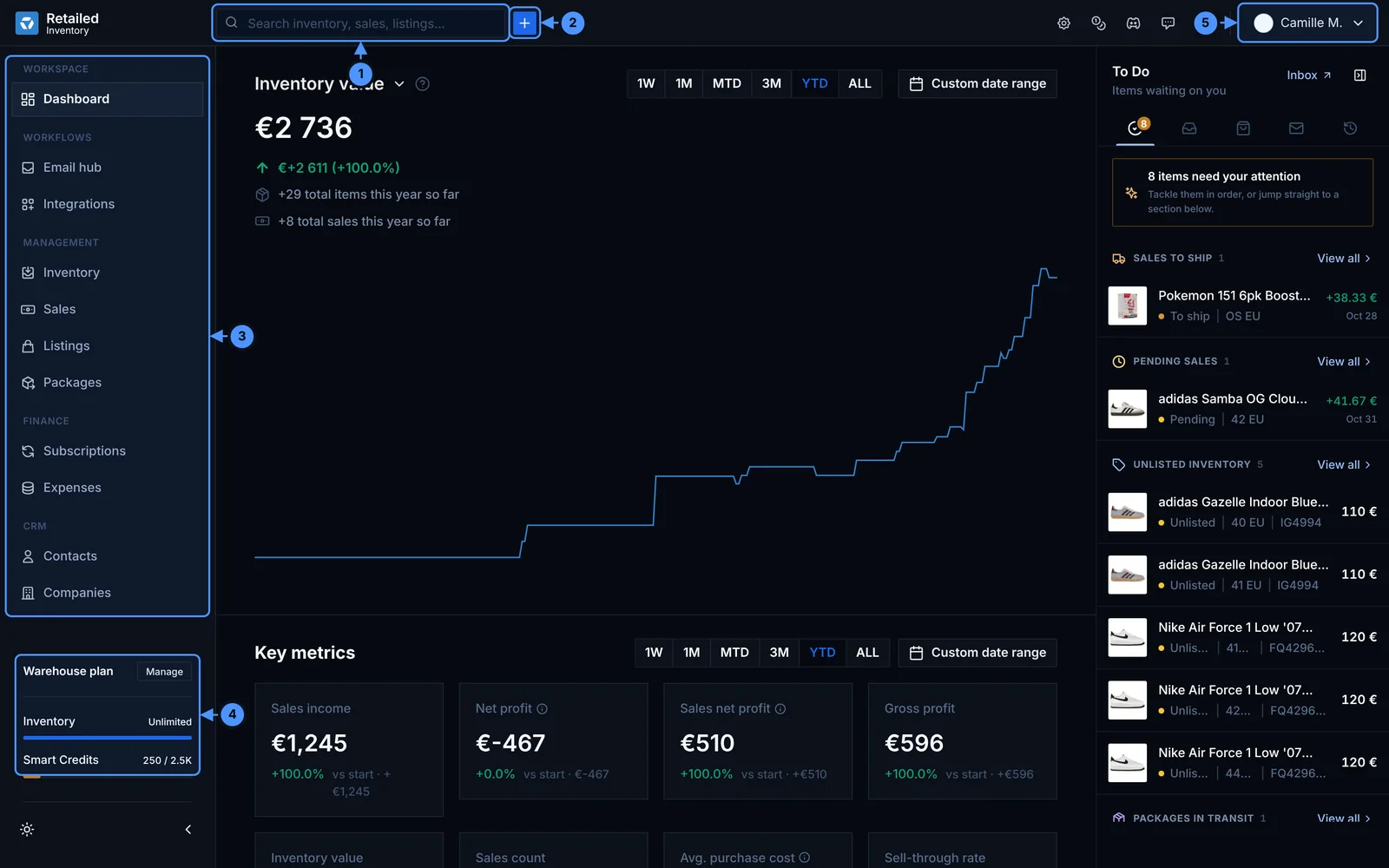
The plan card at the bottom of the sidebar shows how much of your plan's inventory and Smart Credits you have used. The sun and moon button switches between light and dark mode.