Still on Retailed classic? Classic guides
Reports
See profit for any period, by channel or by tag, how it adds up from sales to profit, your VAT, the month-end checks, close a month to lock its numbers, and keep your police register.
Reports shows what you made over a period, and how it adds up.
See your profit
Open Reports.
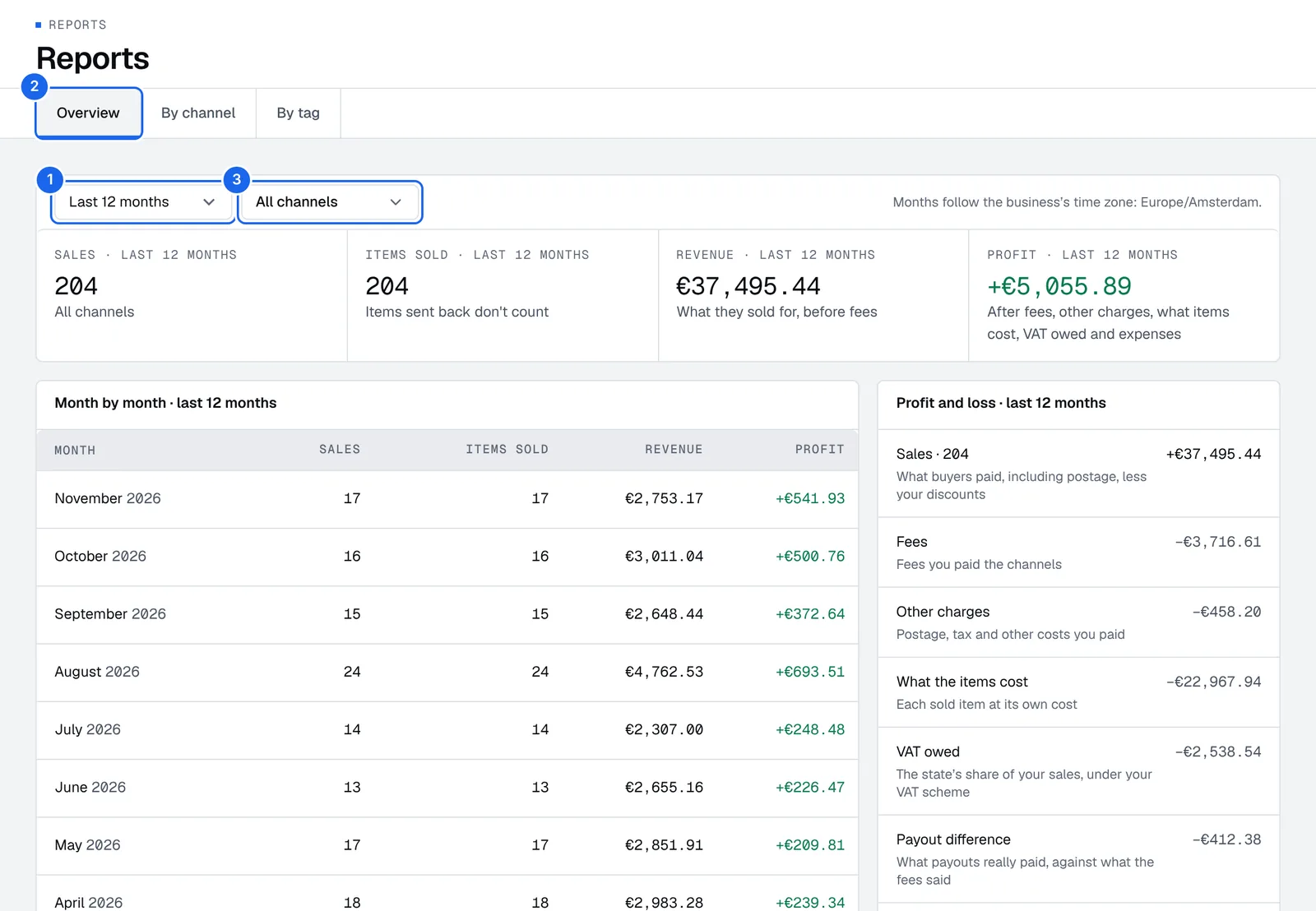
- Press Period and pick one: Last 12 months, This year, Last year, This tax year, Last tax year, This quarter, Last quarter or a Custom range.
- Pick a view: Overview, By channel or By tag.
- Press Channel to count one channel only.
Month by month lists each month's sales, items sold, revenue and profit: press a column title to sort. Profit and loss shows how the period adds up, line by line.
Months follow your business's time zone. Set when your tax year starts in Business and tax settings.
How it adds up
Overview walks from what buyers paid to your profit:
- Sales: what buyers paid, postage included, less your discounts.
- Fees and other charges you paid, such as postage and tax.
- What the items cost: each sold item at its own cost.
- VAT owed: the state's share of your sales, under your VAT scheme. Under the global margin scheme, it's worked out once a month, on the month's sales less its purchases.
- Payout difference: what payouts really paid, against what the fees said.
- Expenses and Other income.
- Corrections to closed months: VAT or costs of a closed month, booked in this one.
- Profit.
By channel and By tag show profit before expenses, since expenses have no channel or tag. A sale counts under every tag its items carry, so the tag rows don't add up to the period. Tag items in Stock, by show, sourcing trip or drop, to see the profit of each.
Tax a marketplace collects from buyers on top of the price is never revenue or profit.
Month-end checks
Reports flags the sales to fix: sales with an item that has no cost, items bought in another currency, sales in another currency with no exchange rate yet, overdue payouts and payouts that don't match their fees. When nothing is flagged, you see Nothing flagged.
Close a month
Closing a month saves its totals and locks it, so the numbers you hand your accountant can't move.
- In Reports, go to Month close and press Close with the month's name, for example Close October. A month can close once it has ended, and months close in order, oldest first.
- Check the month-end checks. Fix the sales they list, or press Close anyway: the checks are saved with the totals.
- Press Close the month.
Its profit, stock value at the month's end and checks are saved, with a fingerprint that would change if the totals ever did. Nothing dated in that month can change after: a later correction goes into the open month, as a correction line. Your first close keeps your books in your current time zone for good.
Only someone who manages the account's settings can close a month. Only the owner can reopen one, and only the last closed month, with a reason.
Keep your police register
The police register (livre de police) gives every item you buy a numbered line, with who sold it and how you paid, as French law asks of second-hand sellers. Retailed writes it for you on Seller and higher plans. Lines are never edited, only corrected.
- In Reports, press Police register. It's also in Settings › Business.
- Check Missing seller ID at the top: add the seller's ID to those items before you resell them.
- To export a month, press Export PDF and pick the month.
IDs are stored encrypted and shown masked. Only the account owner can reveal one, and every reveal is logged.
Export for your accountant
Download everything in your account as CSV files from Settings › Business. See Import and export.
Expenses and other income
Add costs that aren't stock, like shipping labels, packaging and rent, and money in that isn't a sale, keep receipts, and repeat rent and subscriptions automatically.
Import and export
Import stock or past sales from a CSV or Excel file, check every row before it's saved, and download all your data as CSV files.