Still on Retailed classic? Classic guides
Purchases and suppliers
See every buy with its supplier, units and cost, change a buy's shipping, fees and tax, mark it received, and track what each supplier brought in.
A purchase is one order or receipt. Its units sit in Stock › Items, each with its share of the cost. A buy shows up in Stock › Purchases when you add items with a supplier or an order number.
See your purchases
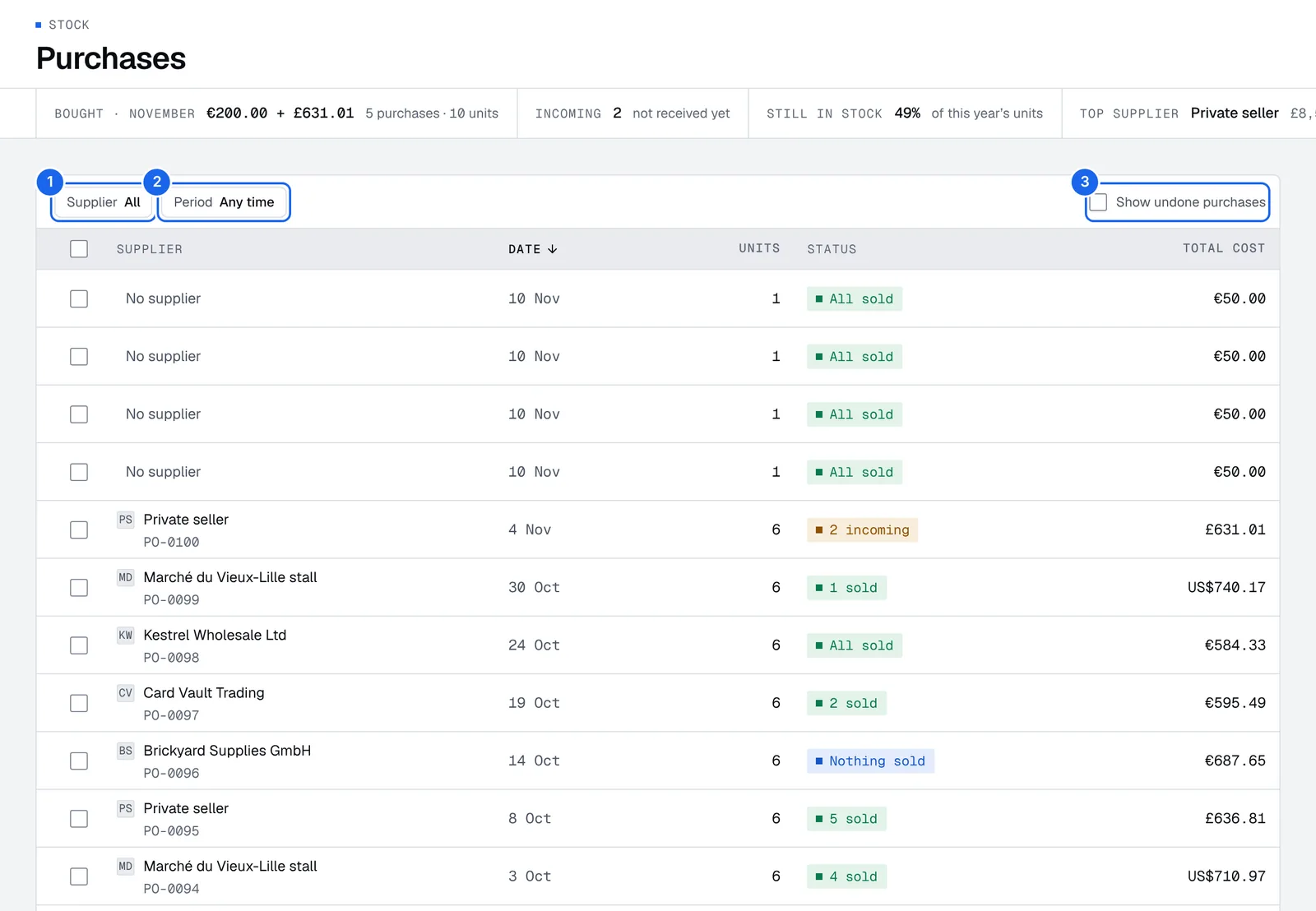
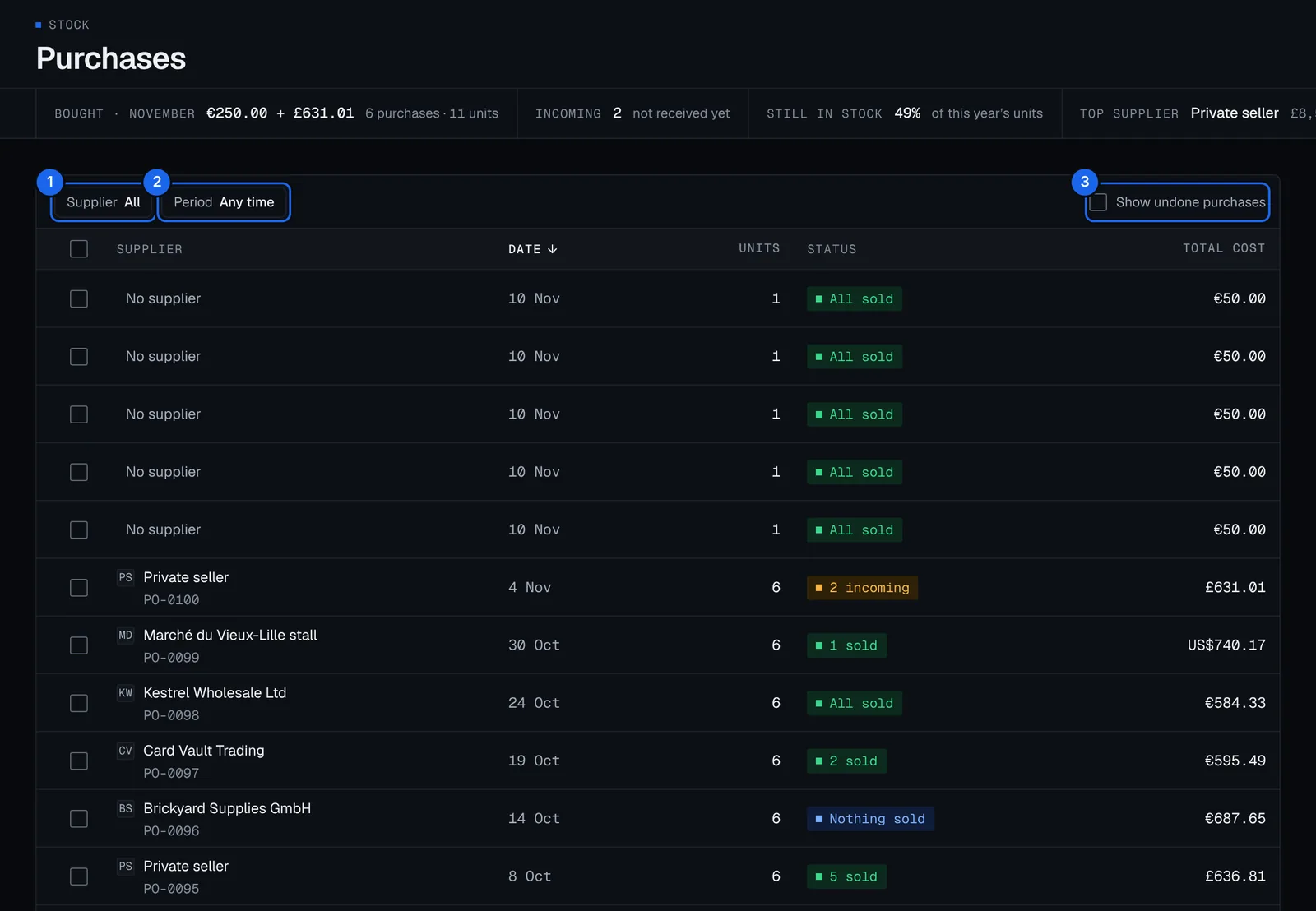
- Supplier: show the buys from one supplier.
- Period: a month, a quarter, a year or any dates.
- Show undone purchases: also list buys you undid.
Open Stock › Purchases. The strip at the top shows what you bought this month, what's still incoming, the share of this year's units still in stock and your top supplier. Each row shows the supplier, the date, the units, its status (All sold, 2 sold, Nothing sold or 2 incoming) and the cost. Tick rows to act on several at once. Open a purchase to see each unit and the extras added to the units' cost: shipping, fees and tax.
Change a buy's costs
- Open the purchase and press Change.
- Change the supplier, or add a cost line: shipping, fees or tax.
- Pick how extras are spread over the units: Split evenly, Split by price (a dearer pair takes a bigger share) or each unit's cost Typed by hand.
- Press Save.
If some units are already sold, Retailed asks whether to keep their cost or spread the new total over them too, since their profit would change. The change is saved straight away, and you can undo it from Applied in the Inbox.
Import VAT you reclaim stays out of the units' cost. Under the margin scheme, a buy at auction or an import can count the buyer's premium or the import VAT in each unit's purchase price.
Mark a buy received
A buy recorded as not here yet stays Incoming, apart from your stock.
- Open the purchase, or find it in Stock › Parcels.
- Press Mark received. Its units go in stock and count in its value.
To change the tracking number or the day you expect it, open the purchase and press Add tracking (or Change tracking), then Save tracking. See Parcels.
Add a supplier
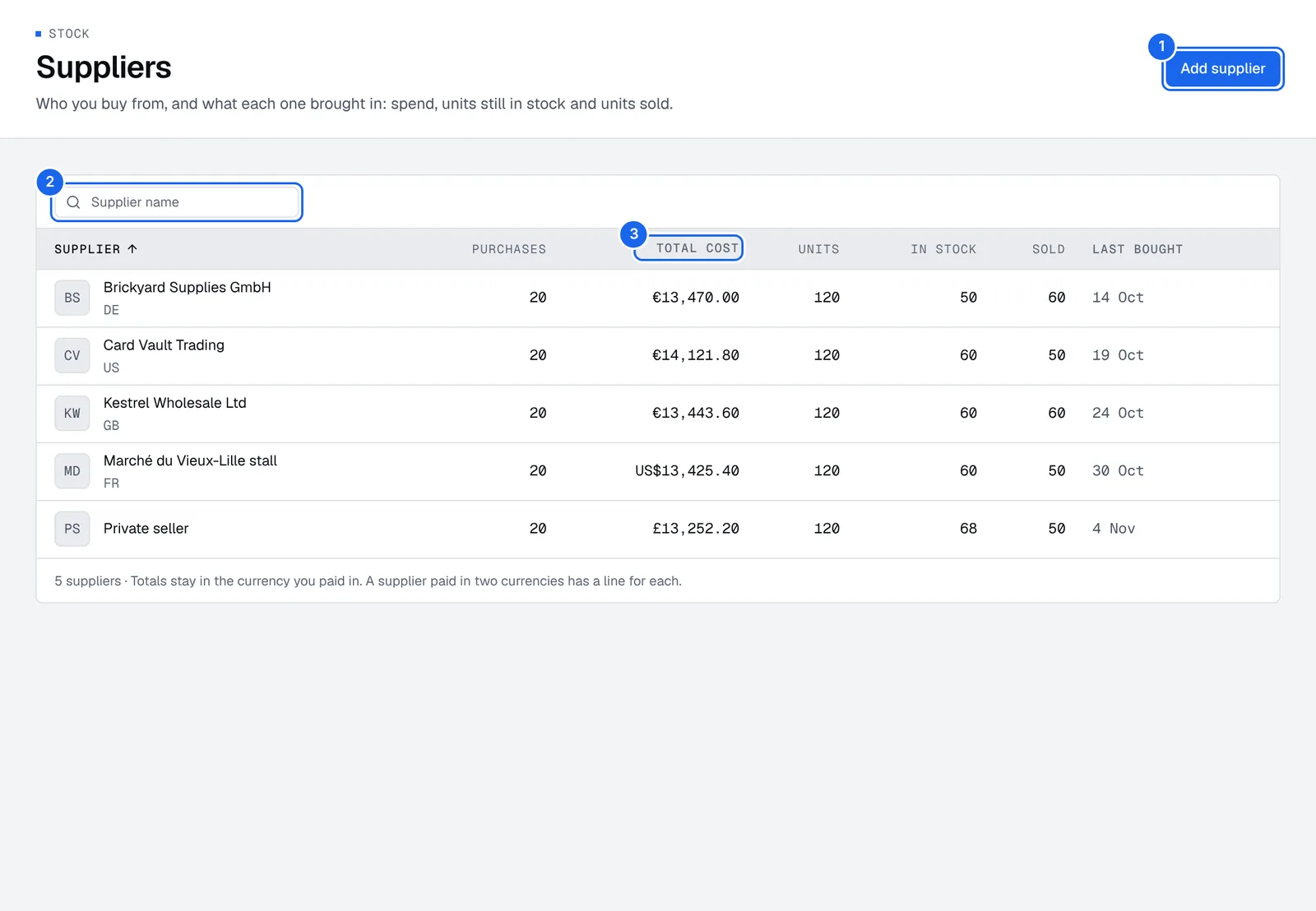
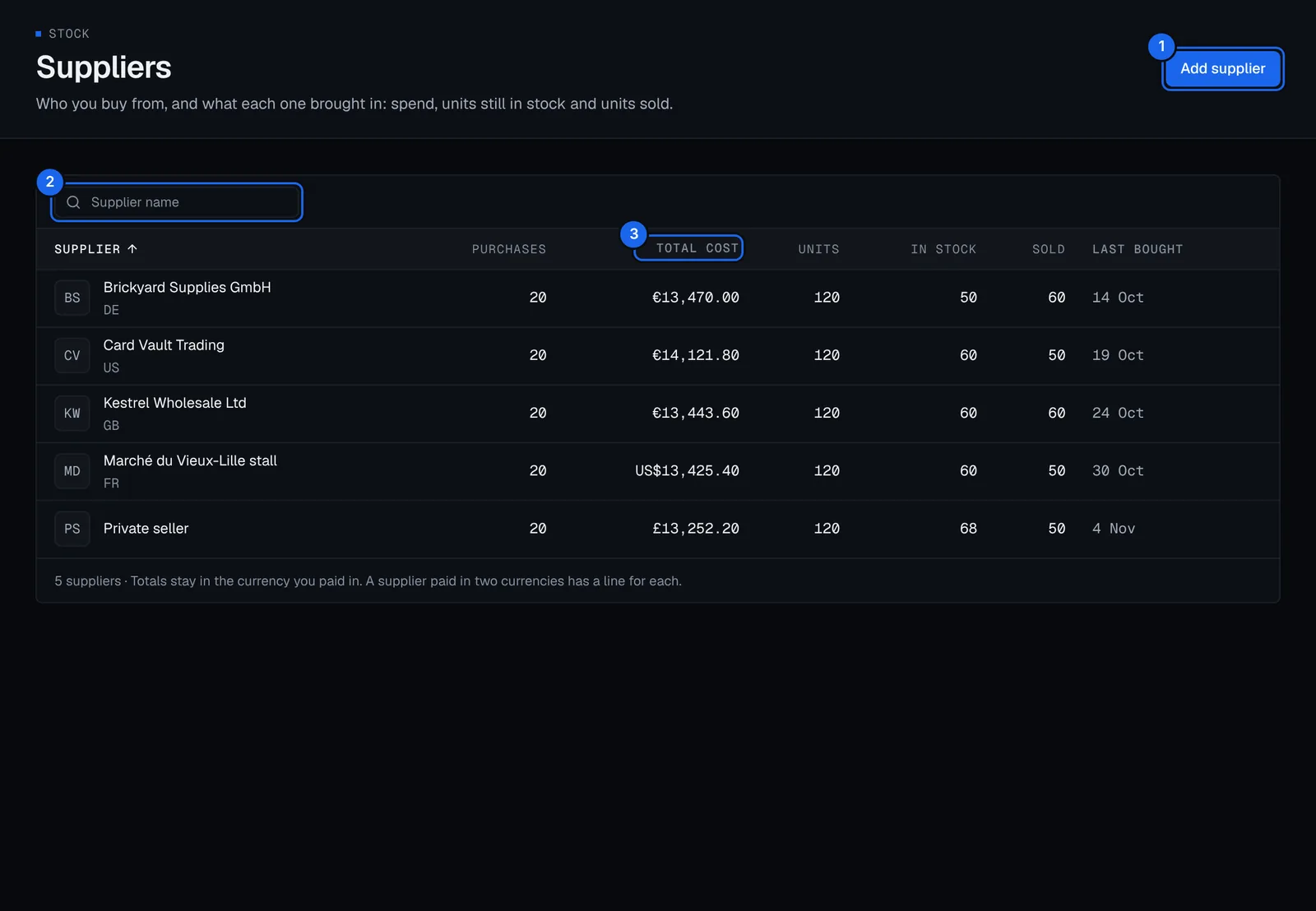
- Open Stock › Suppliers and press Add supplier.
- Type the name of the shop, website or person, as you'd call them.
- Optionally add an email, a phone, a website (used for their logo) and a note, like opening hours or how they like to be paid.
- Press Save.
To find a supplier, type in Supplier name (2 in the picture). Press a column title, such as Total cost (3), to sort by it.
See what a supplier brought in
Open Stock › Suppliers and click a supplier. You see what you spent with them, the units still in stock and the units sold. Totals stay in the currency you paid in: a supplier paid in two currencies has a line for each. Open the supplier page for all of their purchases.
Add items
Add stock by hand, as a whole size run or a lot, from the catalogue, by scanning a barcode, from a photo of the box or receipt, or from a spreadsheet.
Consignment
Sell items for other people: set your commission, take items in, see what you owe each consignor, record payouts and give them a private link.