Still on Retailed classic? Classic guides
Notifications, layout and theme
Pick where each alert reaches you, set quiet hours, choose which emails you get, and change the app's layout and theme.
Choose your alerts
Settings › Notifications sets where each alert reaches you: In app, as a Push on your phone, or by Email. These settings are yours, for this account only.
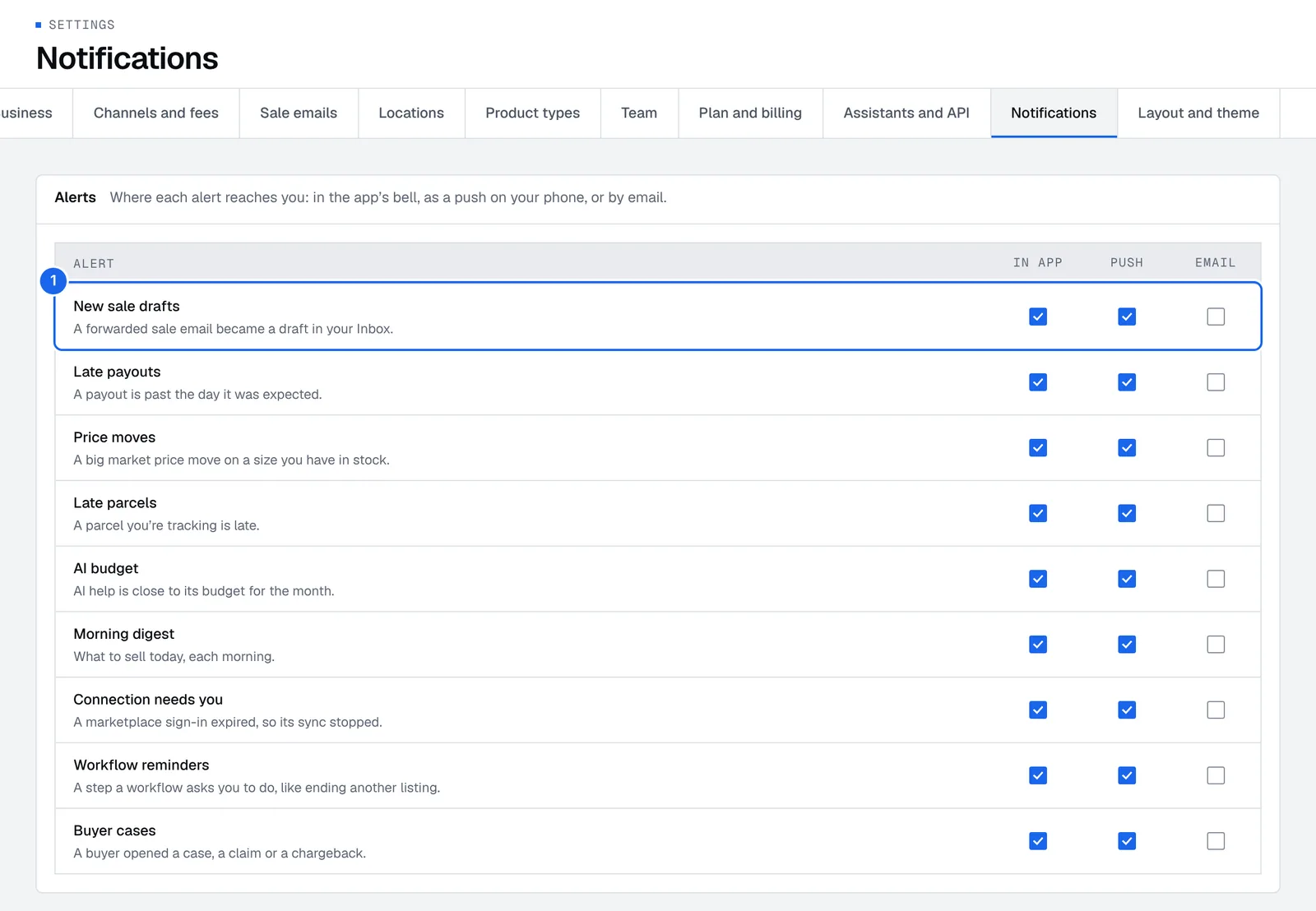
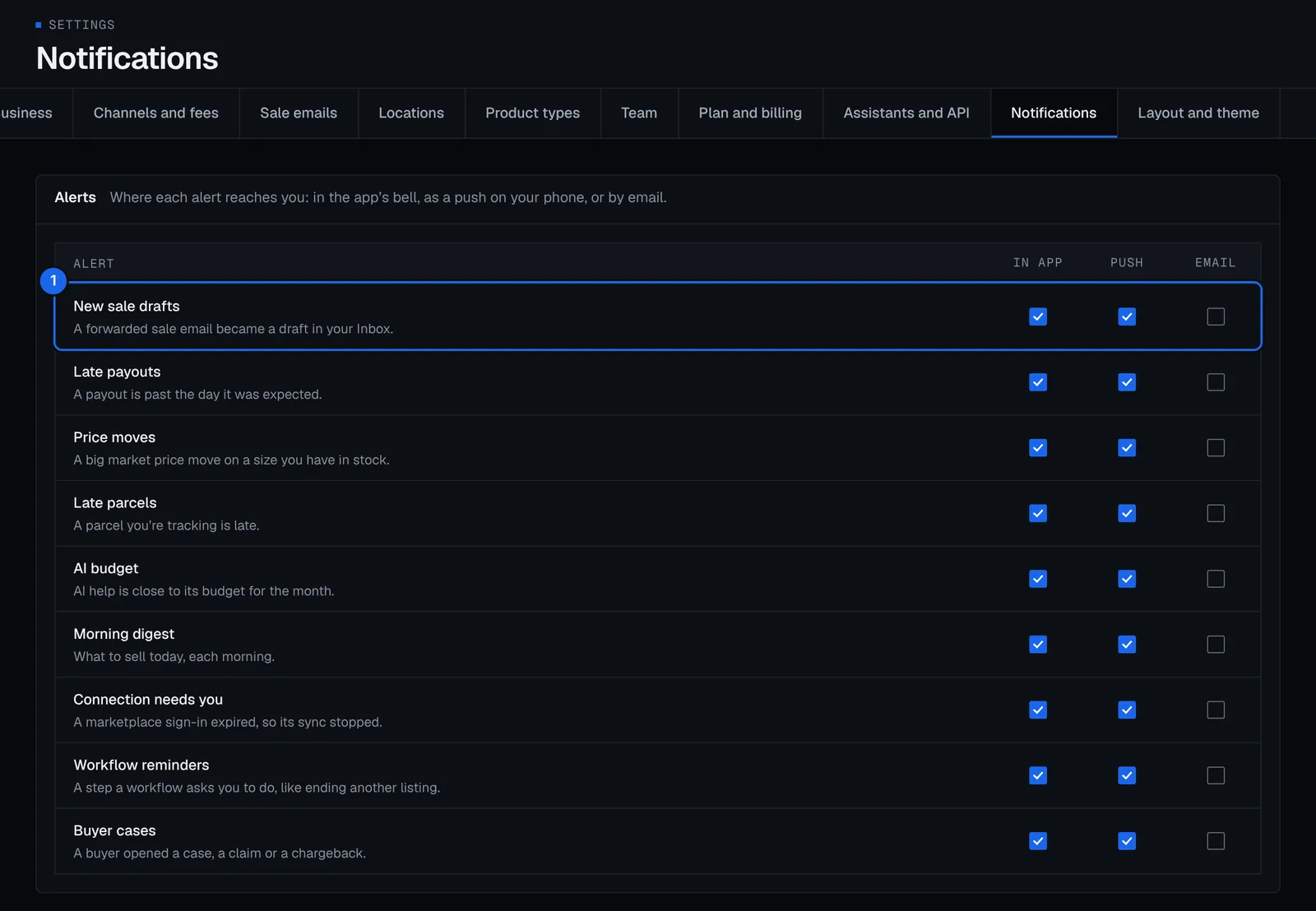
- Open Settings › Notifications.
- For each alert (callout 1 shows one row), turn on In app, Push or Email. You can turn on several, or none. Alerts include:
- New sale drafts: a forwarded sale email became a draft in your Inbox.
- Late payouts: a payout is past the day it was expected.
- Price moves: a big market price move on a size you have in stock.
- Late parcels: a parcel you're tracking is late.
- Buyer cases: a buyer opened a case, a claim or a chargeback.
- Connection needs you: a marketplace sign-in expired, so its sync stopped.
- Morning digest: what to sell today, each morning.
- AI budget: AI help is close to its budget for the month.
- Workflow reminders: a step a workflow asks you to do, like ending another listing.
- Turn on Group alerts that arrive together into one to get several alerts as one.
- Press Save.
Set quiet hours
Turn on Pause pushes at night and set From and To: no pushes arrive in that window. They wait and arrive together when it ends.
Choose your emails
Under emails, pick the tips, recaps and updates you want, such as the Weekly brief, Inbox digest, Payout landed, Month closed, Tax watch (DAC7) and Product updates. Tax watch warns you before you reach 30 sales or €2,000 on a platform in a year, the point where the platform reports you under DAC7. Each email has an unsubscribe link too.
Sign-in, security and billing emails, such as your sign-in code or a new sign-in, always go. You can't turn them off.
Change the layout and theme
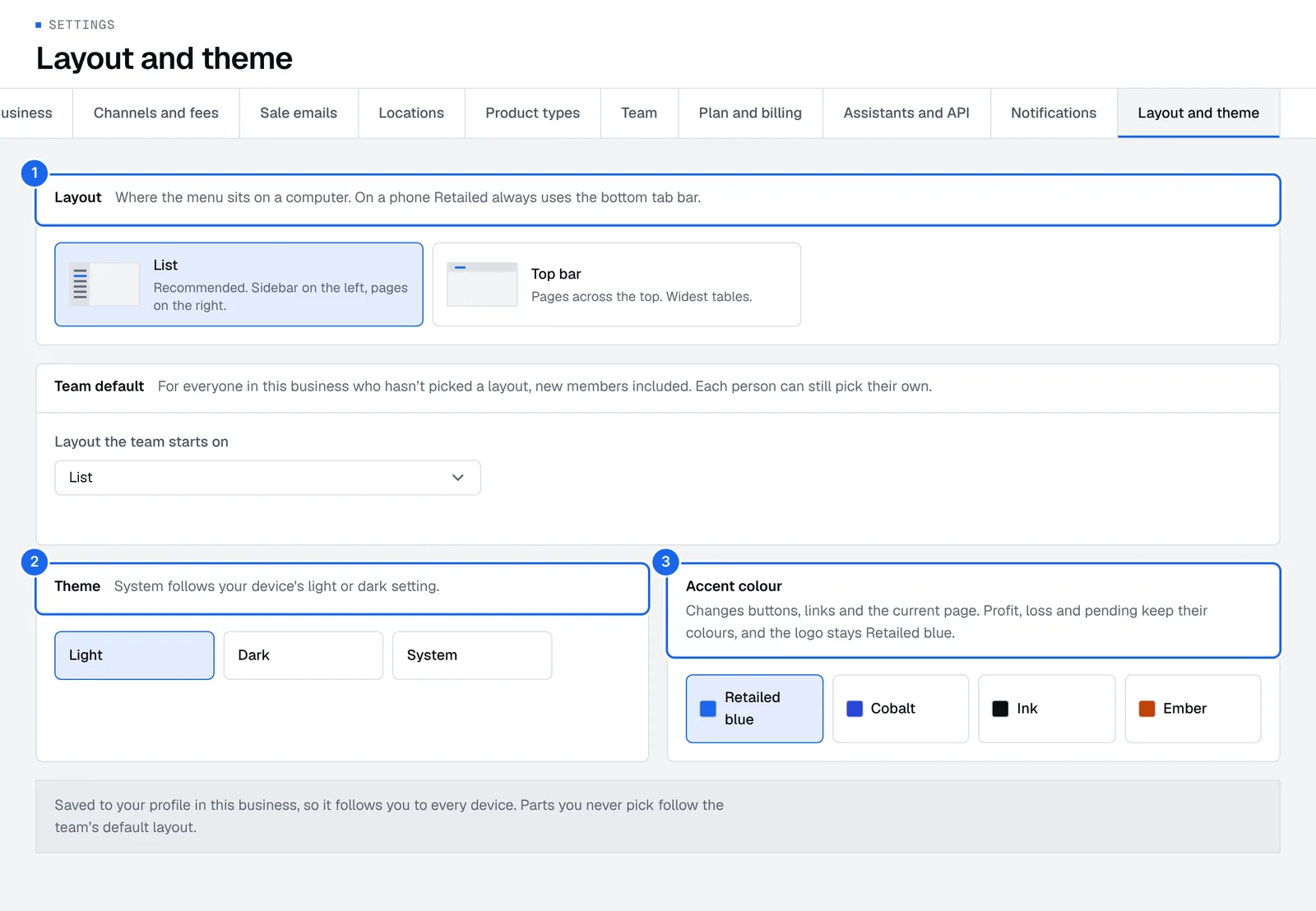
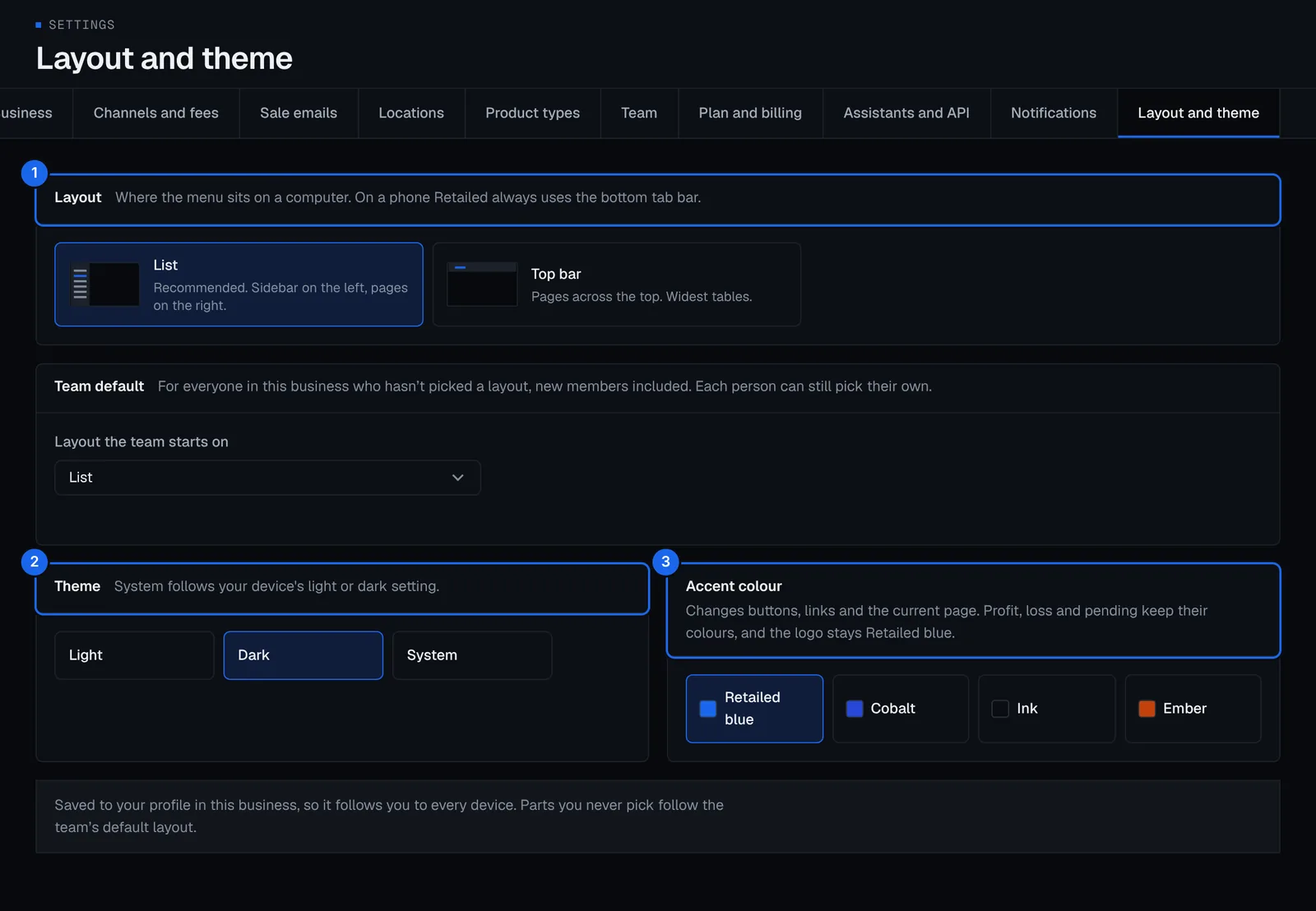
- Open Settings › Layout and theme.
- Pick a layout: List, with the sidebar on the left (recommended), or Top bar, with pages across the top for the widest tables. On a phone, Retailed always uses the bottom tab bar.
- Pick a theme: Light, Dark or System, which follows your device.
- Pick an Accent colour for buttons, links and the current page: Retailed blue, Cobalt, Ink or Ember. Profit, loss and pending keep their colours.
Your choice is saved to your profile in this business, so it follows you to every device. Someone who manages the account's settings can also set the team's default layout for everyone who hasn't picked one.