Still on Retailed classic? Classic guides
Locations and product types
Add the places you keep stock, archive the ones you no longer use, and set up product types with the custom fields your stock needs.
Add a location
A location is where you keep stock: home, a warehouse, a shop, a vault, a consignment store, a grader or authenticator, or parcels on the way. Add item and the Inventory filters offer these places.
Open Settings › Locations.
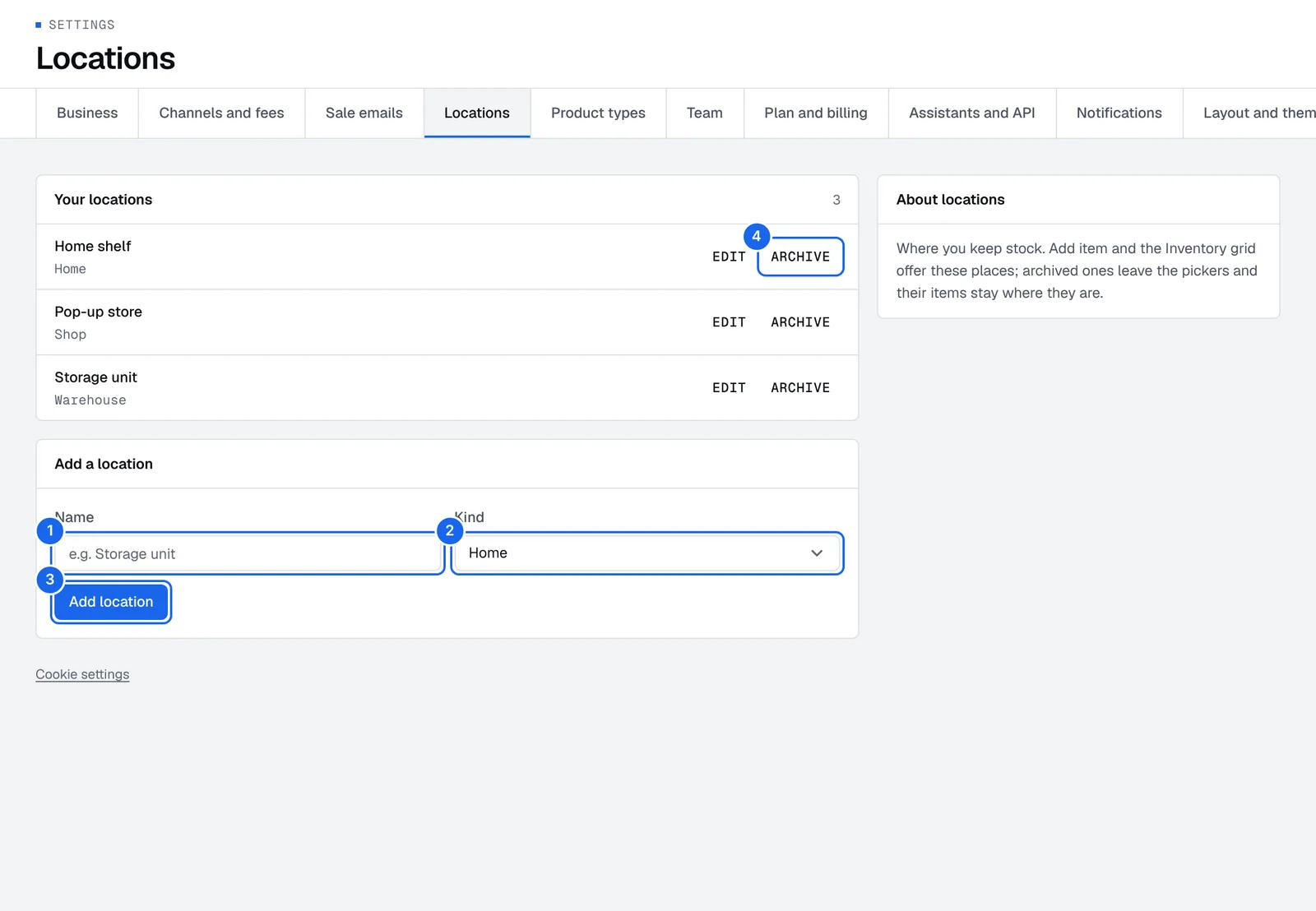
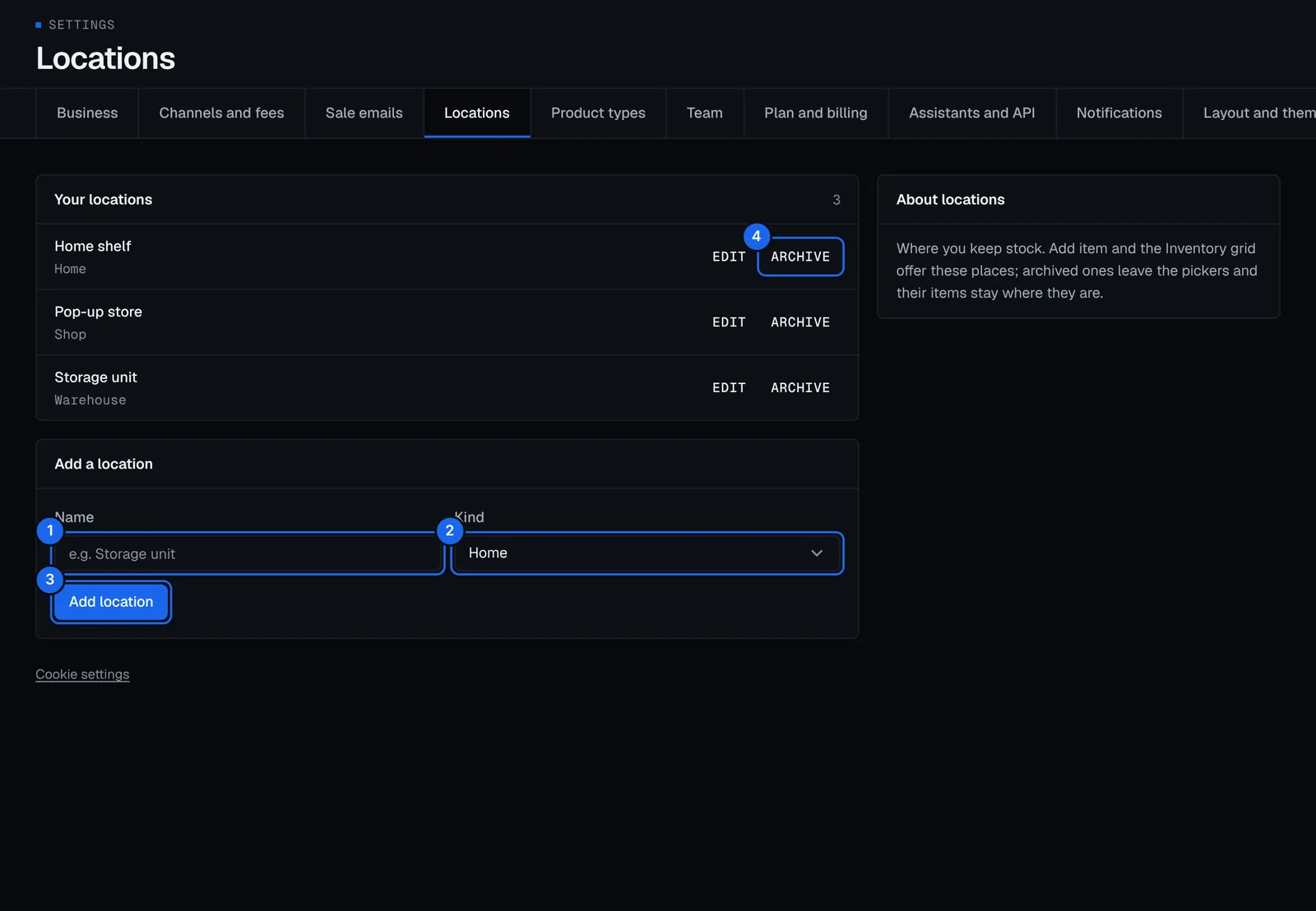
- Under Add a location, type its Name, for example "Storage unit".
- Pick its Kind: Home, Warehouse, Shop, Consignment, Vault, Grading or authentication, or parcels on the way.
- Press Add location.
- To rename one, press Edit on it. To stop using one, press Archive (see below).
To move stock between locations, tick the units in Stock › Items and press Move. See Inventory.
Archive a location
Press Archive on a location you no longer use. It's hidden from Add item and the filters, and the items kept there stay there until you move them. Press Restore to bring it back.
Set up a product type
A product type says what each kind of stock tracks beyond the basics. Add item asks for its fields, and the Inventory grid can show them as columns.
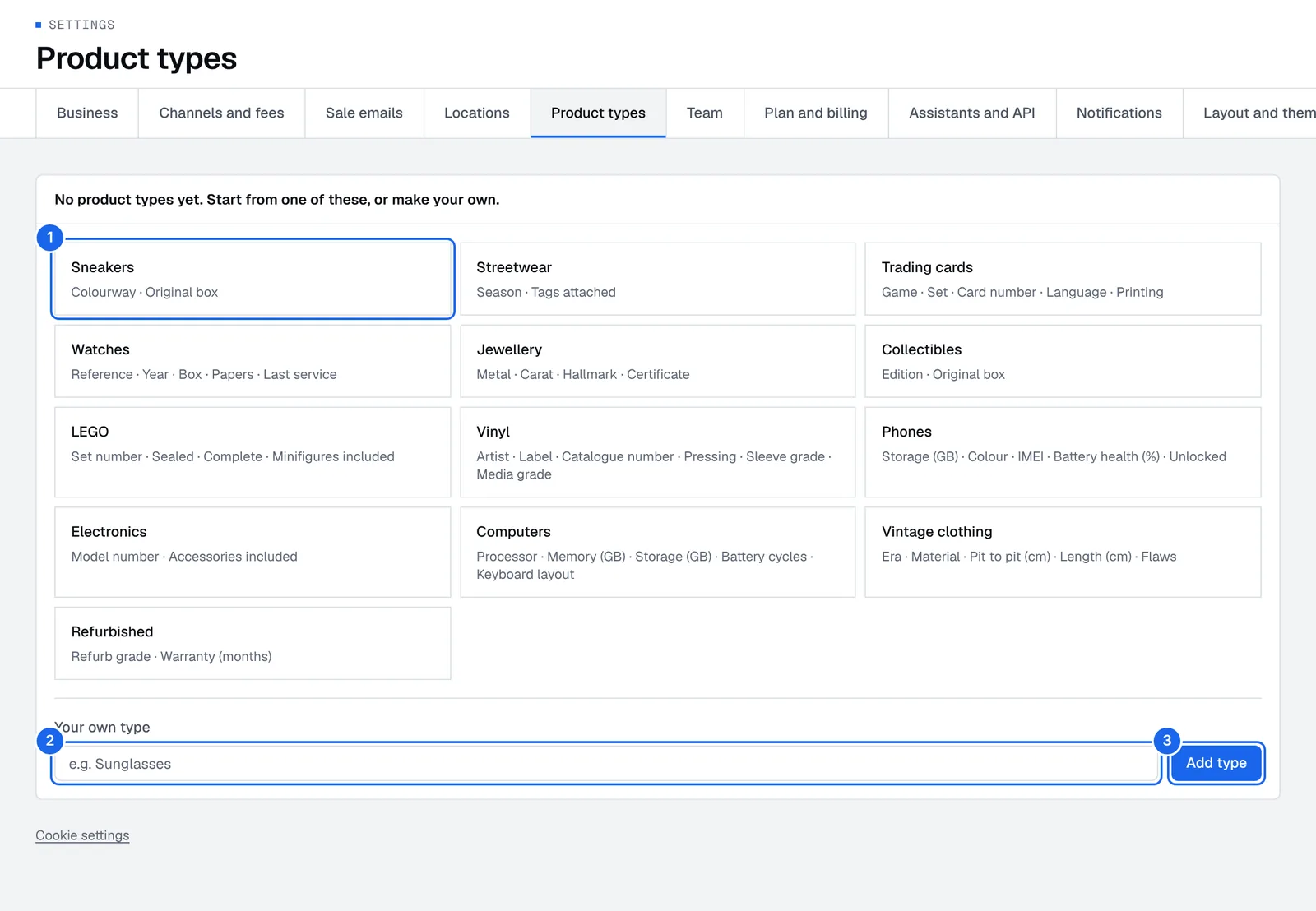
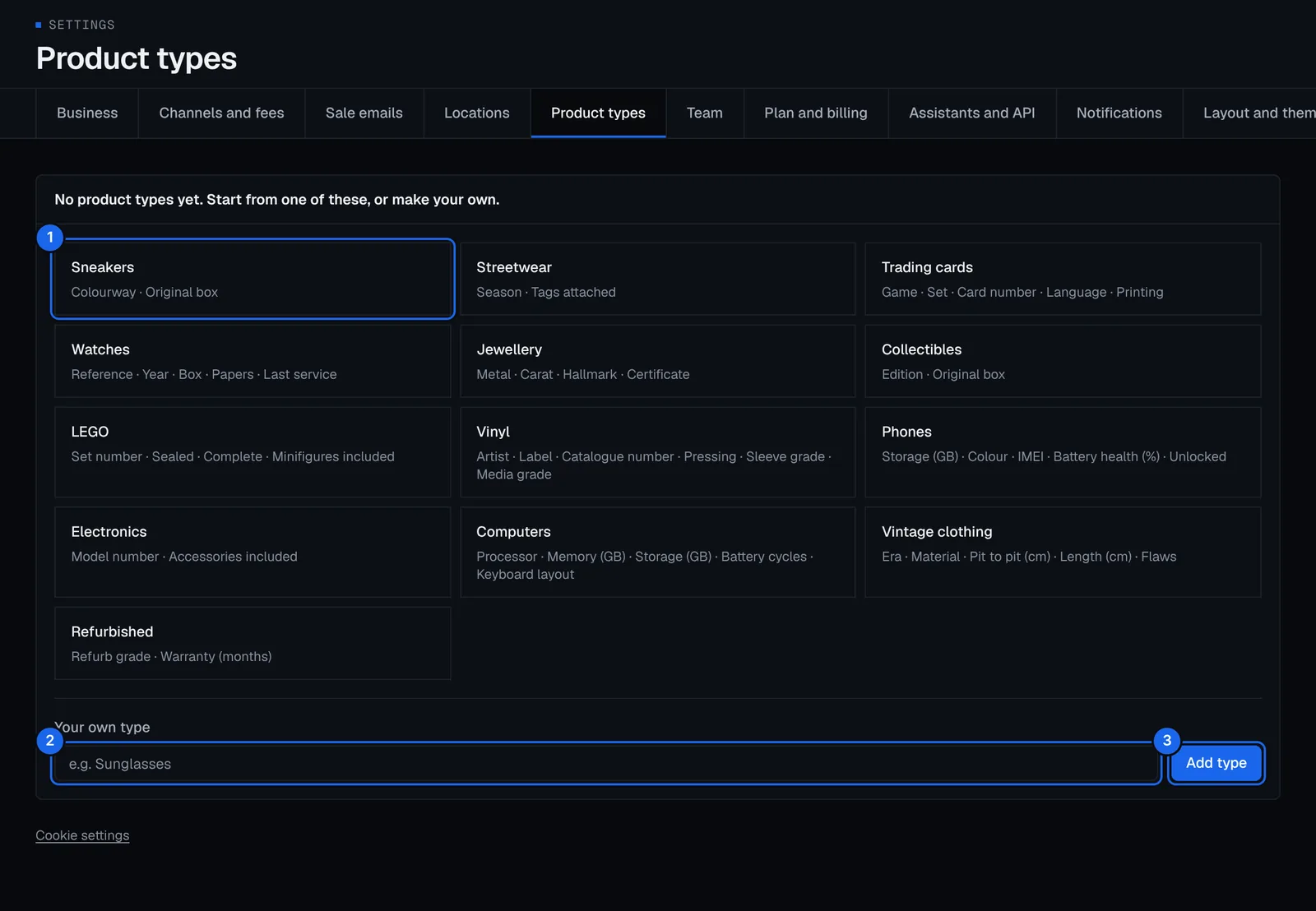
- Open Settings › Product types and pick a template. Each one lists the fields it adds.
- Or make your own: type its name under Your own type, for example "Sunglasses".
- Press Add type.
The templates are Sneakers, Streetwear, Trading cards, Watches, Jewellery, Collectibles, LEGO, Vinyl, Phones, Electronics, Computers, Vintage clothing and Refurbished. Then open the type to pick its size system: EU, US, UK, Letters (S, M, L) or No sizes.
Add a custom field
- Open the product type in Settings › Product types and press Add a field.
- Name it, for example "Serial number", and pick its type.
- Pick when it's asked: Each product (once per product), Each size or version, or Each unit (for every unit you add).
- Press Add field.
Press Remove to take a field away. Removed fields take no new values, and what's already saved stays. Archive a product type to hide it from Add item: products that use it keep it.