Still on Retailed classic? Classic guides
Team and roles
Invite people to your business, pick what each role can do, make your own roles and hand over ownership.
Settings › Team shows who works in your business and what each person can do. Team seats come with the Business plan and up: Business includes 3 seats, and each extra seat is charged per month, before VAT. On Seller and Pro, the Helper seat add-on gives someone who helps out a login with a limited role, with no costs or settings. See Plans and billing.
Invite someone
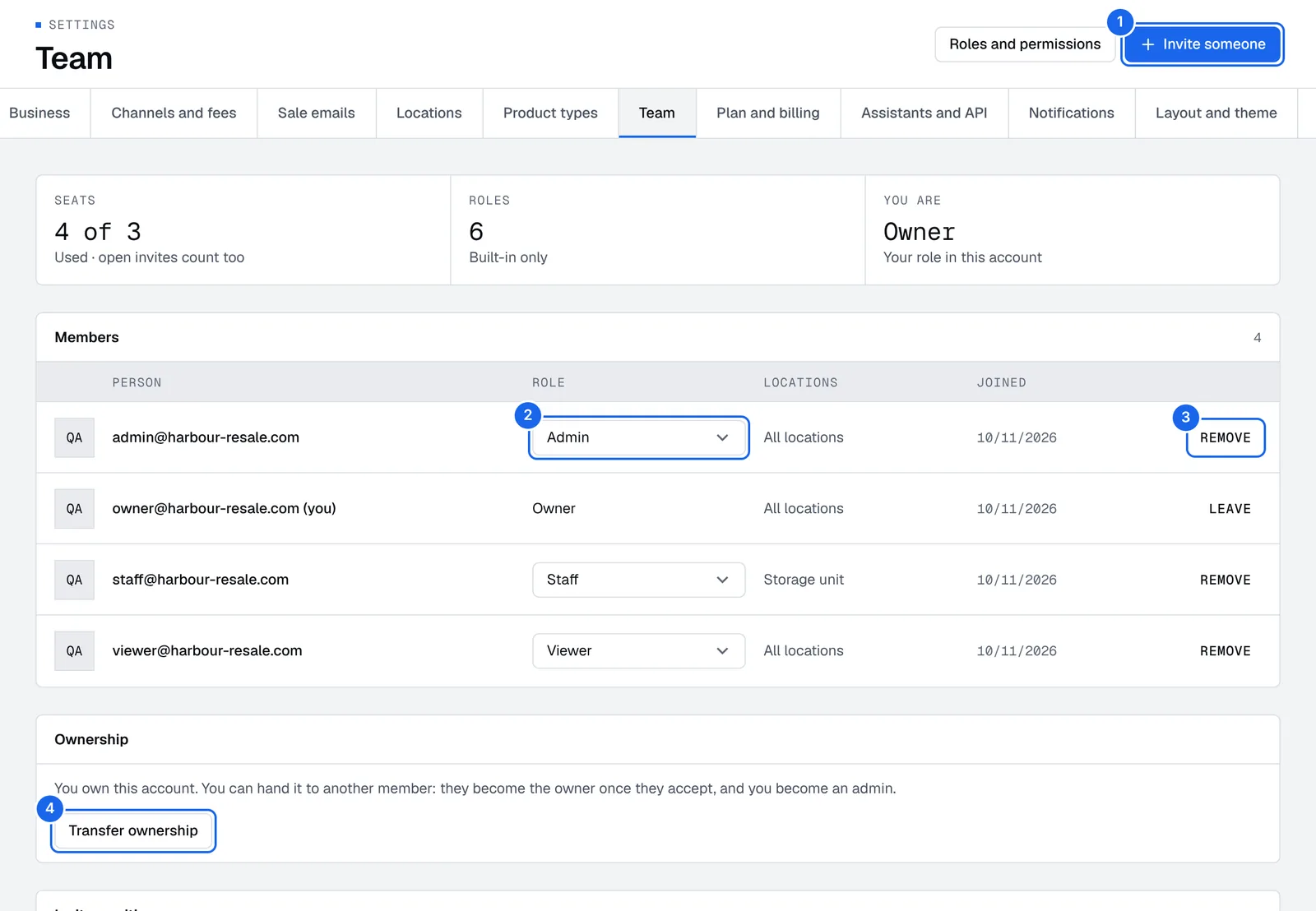
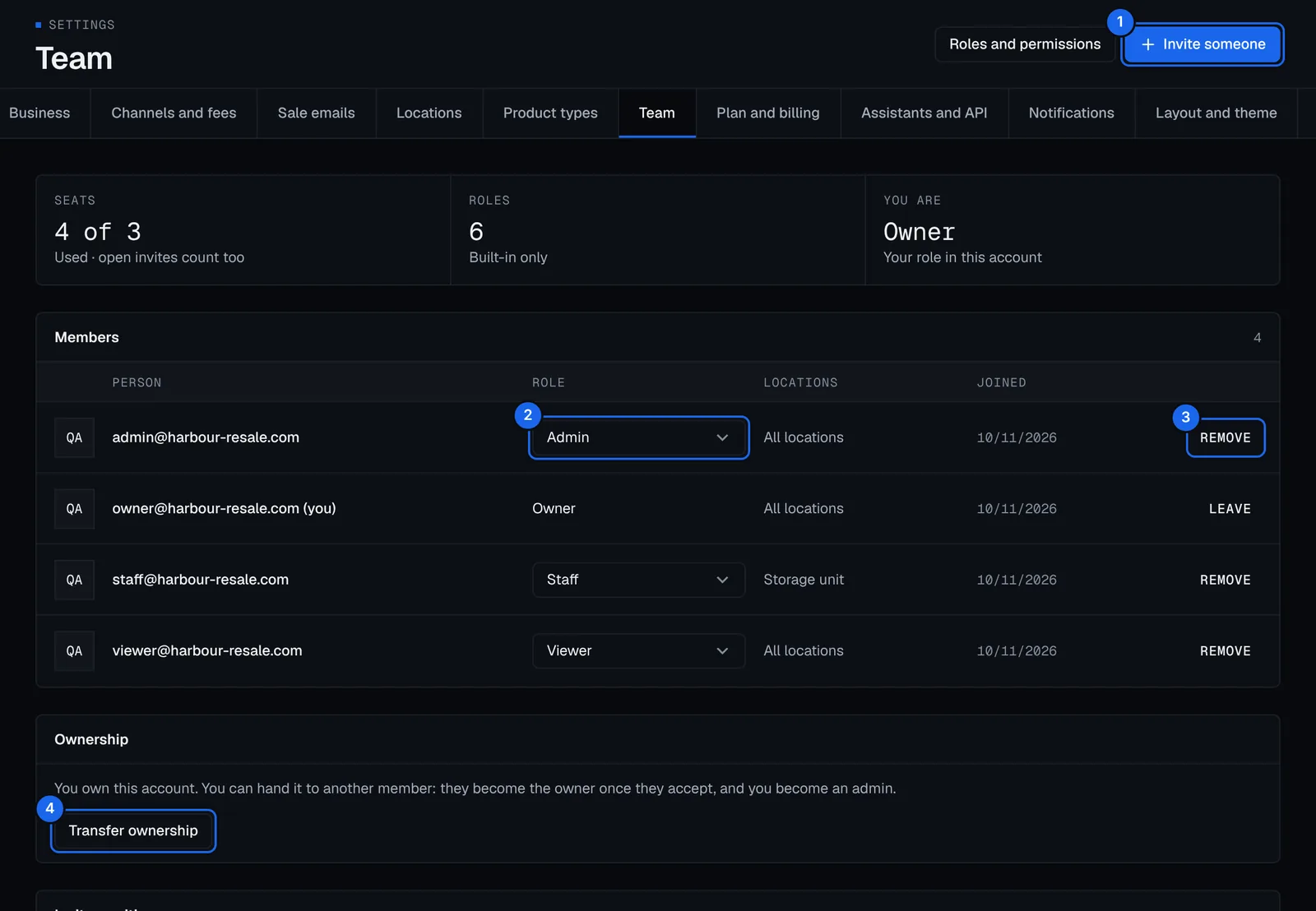
- Open Settings › Team and press Invite someone.
- Type their email and pick a role. You can only give roles whose rights you hold yourself.
- Press Create invite. Retailed emails them the invite and shows the link once, so you can also press Copy link and send it yourself. The link works for 7 days.
They open the link, sign in with that email and press Join. Open invites count as used seats, and you can Cancel one under Invites waiting. An expired link shows as expired: invite them again for a new one.
To change someone's role, pick a new one in their Role menu (callout 2). Remove (callout 3) takes them off the team; Transfer ownership (callout 4) is under Hand over ownership.
The strip at the top shows your Seats (open invites count too), how many Roles there are, and your own role.
The Locations column shows whether someone works at All locations or is limited to some of them.
Built-in roles
| Role | What it can do |
|---|---|
| Owner | Everything, plus billing and transferring the account |
| Admin | All but billing and closing the account |
| Manager | Runs stock, money and reports |
| Staff | Stock and sales, no costs |
| Accountant | Reads everything, costs included, and exports |
| Viewer | Reads stock and sales, no costs |
A role without See costs, margin, profit and stock at cost never sees them: not in the app, exports, the API or AI answers.
Make your own role
Built-in roles can't be changed, but you can start from one.
- Open Settings › Team and press Roles and permissions.
- Press Duplicate on a built-in role, or press New role.
- Name it and tick its rights, such as Edit, refund or delete sales, Manage locations, Manage channels and fees or Create and change Autopilot rules.
- Press Create role, then give it to someone from Settings › Team.
Everyone with a role gets a change to it straight away.
Remove someone or leave
- To remove someone, open Settings › Team and press Remove on their row. They lose access straight away, and what they recorded stays in the account.
- To leave a business you were invited to, press Leave. Someone who can invite people can add you again.
Hand over ownership
- As the owner, open Settings › Team and press Transfer ownership.
- Pick a member and press Send offer. The offer works for 7 days.
- They press Accept ownership in Settings › Team. They become the owner, and you become an admin.
Owners can close the account, manage billing and give any role, so pick someone you trust.
Run several businesses
One sign-in can run several businesses, each with its own stock, money, team and plan.
- Open the account menu (it shows your business name) and press New business. The setup questions start again for it.
- To switch, open the same menu and pick another business.
Business and tax settings
Change your business name, country, currency, seller status, VAT scheme, tax year and aged-stock limit, and recalculate past sales after a VAT change.
Plans and billing
How Retailed plans follow your sales, what each plan adds, the Pro trial and add-ons, and how to change your plan, card and invoices.